
Add a Muse Wonder screenshot and PDF assistant to a SaaS app
A customer uploads a screenshot. Your support assistant can read text, but it cannot see the broken screen.
You want it to inspect the image, look up the account, and suggest a fix without creating a second provider account.
Vercel’s 12 October announcement makes that workflow possible through AI Gateway: Meta’s Muse Wonder is available behind the Gateway model name meta/muse-wonder-1.0. The model accepts text, images, and PDFs, and supports tool calls and structured output. You still need an AI Gateway API key and pay for usage. “No separate Meta account” means the app can use the Gateway credential; it does not mean the model is free or that a gateway key disappears.
Put the gateway call behind your app
Keep the model request on your server. The browser should send an authenticated upload or a short-lived file reference to your app, not an AI Gateway secret. The server checks who owns the conversation, validates the file, and decides whether that file may be sent to the model.
The request path can be simple:
- The user uploads a screenshot or PDF from an authenticated workspace.
- Your server validates size, type, ownership, and retention rules.
- The server calls Muse Wonder through AI Gateway with the minimum useful text and file content.
- If the model requests a tool, your server validates that call and runs only the allowed operation.
- Your app returns a reviewable answer with links to the relevant record or document.
Do not let the model choose an arbitrary URL or tenant. The authenticated request supplies the account boundary. The tool layer enforces it again.
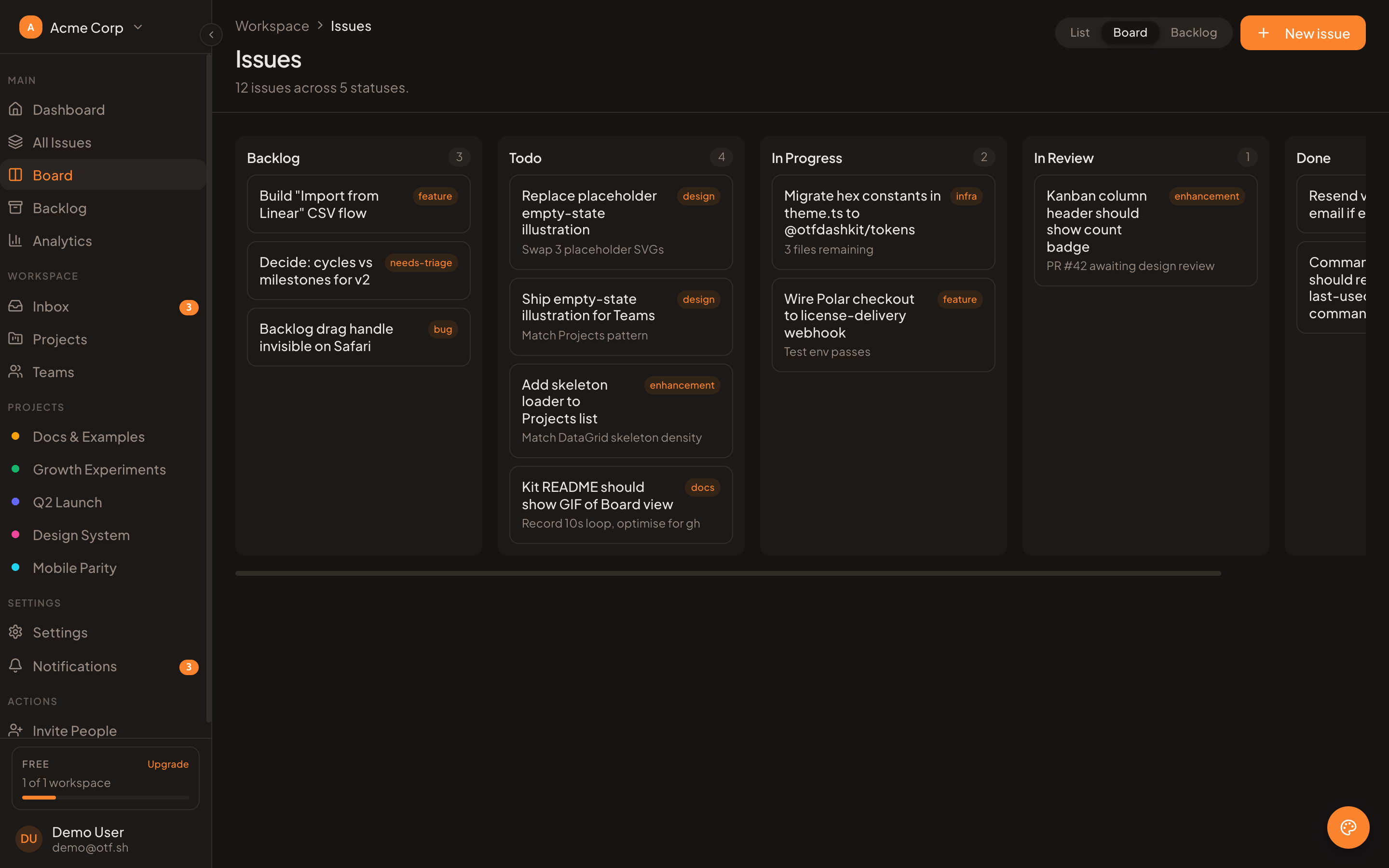
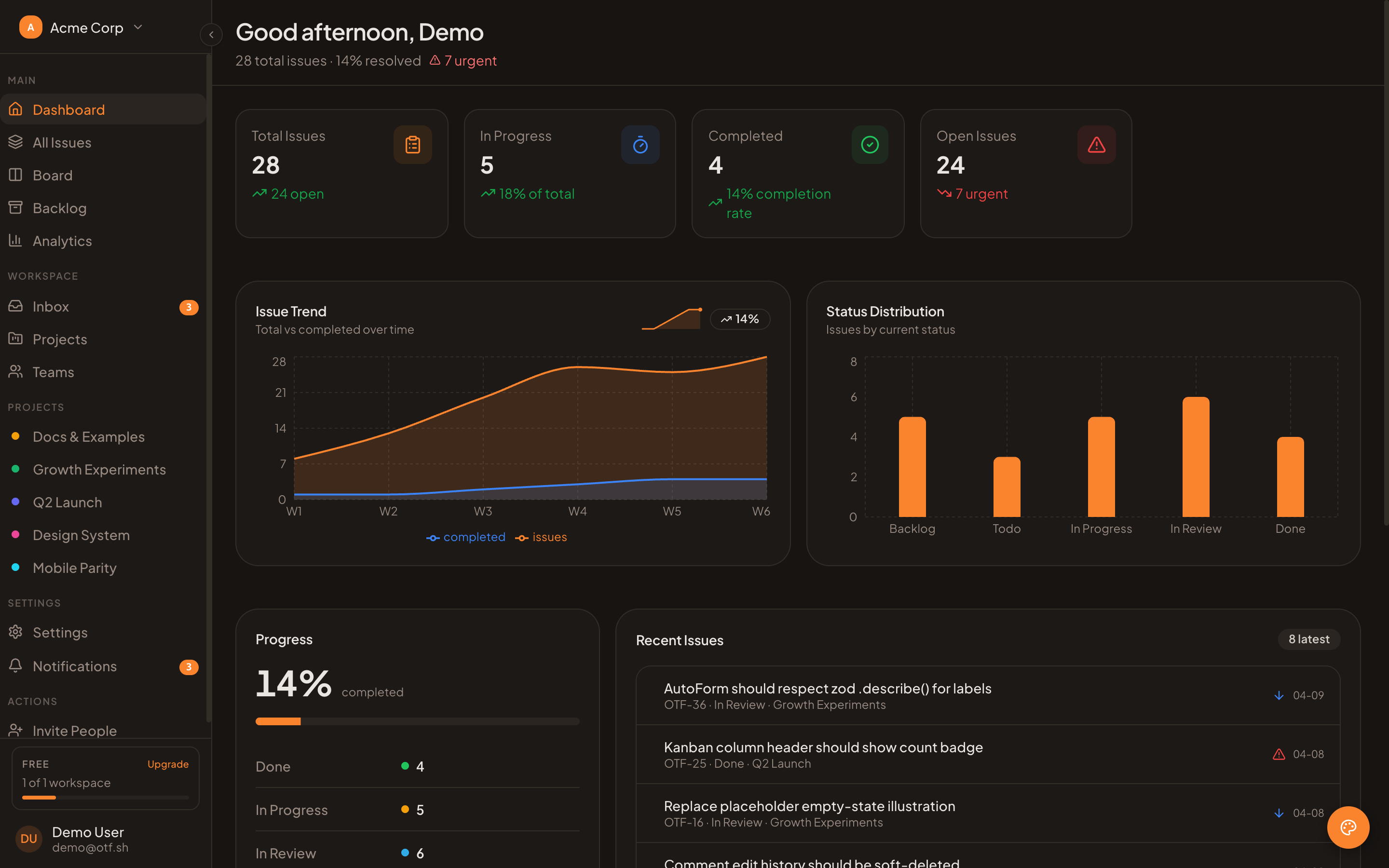
An optional SaaS Dashboard workflow surface; this screen shows no Muse-specific behavior or integration.
Start with a small, inspectable task
A multimodal assistant becomes useful when the prompt names the job and the data boundary. “Look at this” is vague. “Read the attached invoice and identify the invoice date, total, and any missing purchase-order number; do not change the account” gives the model a bounded review task.
Vercel’s example selects the model by its Gateway name:
import { streamText } from 'ai';

const result = streamText({
  model: 'meta/muse-wonder-1.0',
  prompt: 'Review the supplied screenshot and describe the visible issue.',
});
That snippet shows model selection and text generation. To pass a PDF or image, use the multimodal message format supported by the AI SDK version installed in your app. Keep the upload pipeline separate from model selection: file validation, private storage, authorization, and deletion rules are application responsibilities. Do not assume that a URL is safe because a user supplied it. If the app accepts a file URL, fetch it through a server-controlled path with host allowlists and size limits.
For PDFs, decide whether the assistant needs the whole document or a page range. A long file can contain unrelated customer data. If your workflow can identify the page or section first, send only that portion. For screenshots, crop or redact credentials, personal data, and unrelated browser tabs before sending. The model’s ability to inspect a file does not make every file appropriate to share.
Same component names. Web and mobile. One SDK.
The free, open-source SDK gives you web and React Native components with shared names and design tokens, from one SDK. github.com/otf-kit/sdk
Give the assistant tools with clear boundaries
Tool calling is useful when the model needs context that is already in your application. Start with read-only tools such as findInvoice, getProjectStatus, or searchHelpArticles. Define a narrow input schema and have the tool execute only on the authenticated user’s account.
A safe tool does not accept a free-form SQL query, arbitrary file path, or customer ID chosen by the model. It accepts a small set of fields, checks them against server-owned permissions, then returns only the fields needed for the answer. For example, an invoice lookup can accept an invoice reference and tenant ID from the session, then return the status and due date. It should not return every customer record because the screenshot happened to mention one company name.
Treat writes differently. A model may propose a draft support reply or create a pending task, but actions that send messages, issue refunds, or change account settings should require a user confirmation step. The model’s tool call is a request from an untrusted input, not proof that the person authorized the change. Record who approved it and which validated operation ran.
Show the evidence in the response
An answer about a screenshot should separate what the model observed from what the app verified. “The screenshot appears to show a failed save” is an observation. “The account has no active plan” should come from your billing API or database. Ask the model to say when the image is unclear and to point to the values it used. Then render those values beside the original upload so a person can check the answer.
For PDFs, return page references or document links when your workflow can produce them. Do not invent page numbers. If a document is scanned or unreadable, let the assistant say that it cannot extract a reliable field instead of filling in a guess. A short review step is cheaper than sending a confident but wrong update into a customer record.
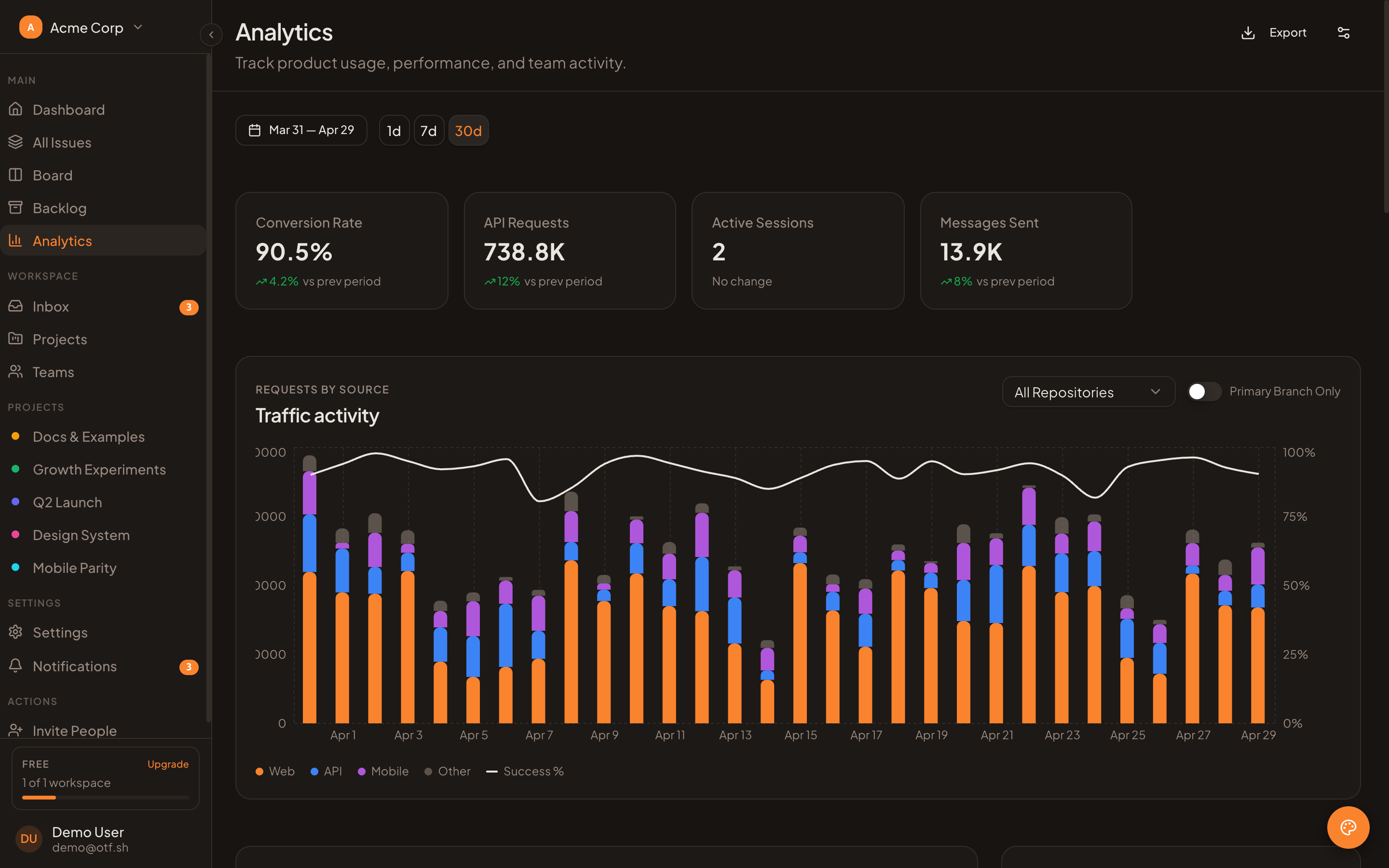
An optional results-view UI; it is not evidence of a Muse connection.
Keep credentials, cost, and retention visible
Vercel says AI Gateway offers one API for models, usage and cost tracking, routing, retries, and failover. That central access path can remove a separate Meta credential from your app, while leaving your Gateway key and usage billing in place. Keep the key in a server-side secret store and rotate it through your normal process. Never include it in a prompt, browser bundle, screenshot, or client error response.
Log enough to debug a failed run: your internal request ID, model identifier, latency, outcome, and the gateway’s usage record. Avoid copying raw PDFs, screenshots, or full prompts into general application logs. Set a retention period for uploaded files and generated outputs, then test deletion. Review how your gateway account handles data and choose the settings that match your own privacy obligations.
Set limits before launch. Cap file size and page count, limit requests per user, and set a budget alert for the gateway project. A multimodal request can be more expensive than a short text question; measure representative support workflows with the files your customers actually upload. Do not estimate cost from a demo prompt.
Where a SaaS starter fits
A dashboard starter can give a team a place to build its own upload flow, workspace UI, and review screen. The OTF SaaS Dashboard is an optional UI and backend starting point; it does not include a Muse Wonder or AI Gateway integration. The integration, credentials, authorization checks, file pipeline, and tool definitions remain your code.
If you want a starter for the surrounding app, see the SaaS Dashboard template and the getting-started guide. For a related view of the app and model bill, see what an AI app builder costs over 12 months.
Sources
- Muse Wonder now available on AI Gateway (Vercel, 12 October 2026).
Buy once, own the code. Ship with the agent you already use.
- Free, open-source SDK — same component, web and mobile
- Paid kits include AI configs + 20+ task prompts per kit — your agent reads the whole project
- $99/kit or $149 for everything. No subscription, no sandbox limit.