
Add bulk actions to a SaaS dashboard table without acting on the wrong rows
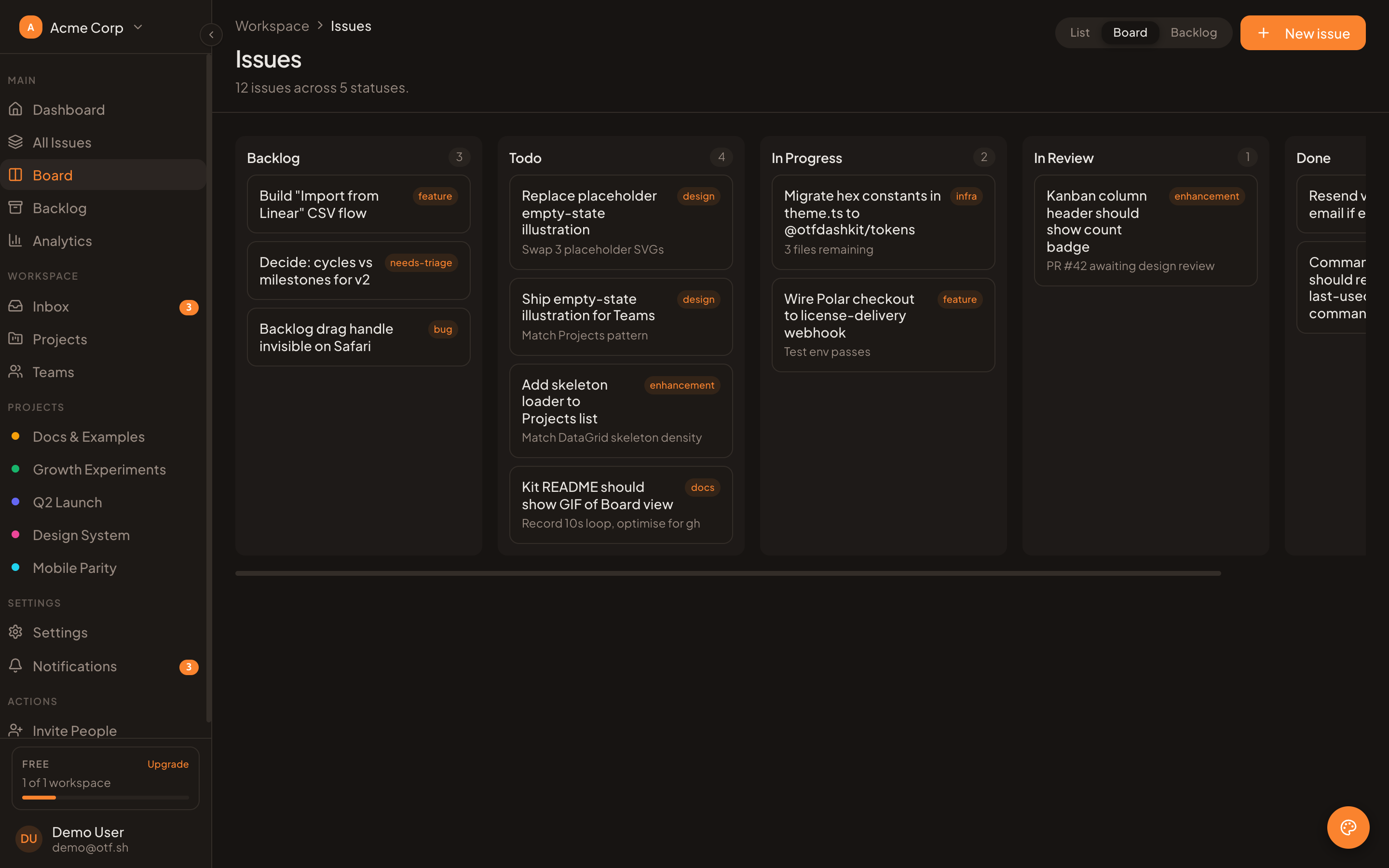
Page one shows 25 rows. You select seven and click “Archive.” Then page two loads, and the selection seems to vanish.
That is a UI detail until the action reaches the wrong records. In a SaaS app, a bulk operation should act on stable database IDs that the server verifies for the current user and workspace. TanStack Table can hold selection state across pages, but your application has to decide what “selected” means and enforce it at the API boundary.
Use database IDs as row IDs
TanStack Table uses the row’s index as its default ID. That is convenient for a small static list, but an index is not a durable identity. Sorting, filtering, inserting a record, or loading another page can make position 4 refer to a different record.
Give each row the stable ID from your database:
const table = useReactTable({
  data: rows,
  columns,
  getRowId: (row) => row.id,
  getCoreRowModel: getCoreRowModel(),
  onRowSelectionChange: setRowSelection,
  state: { rowSelection },
});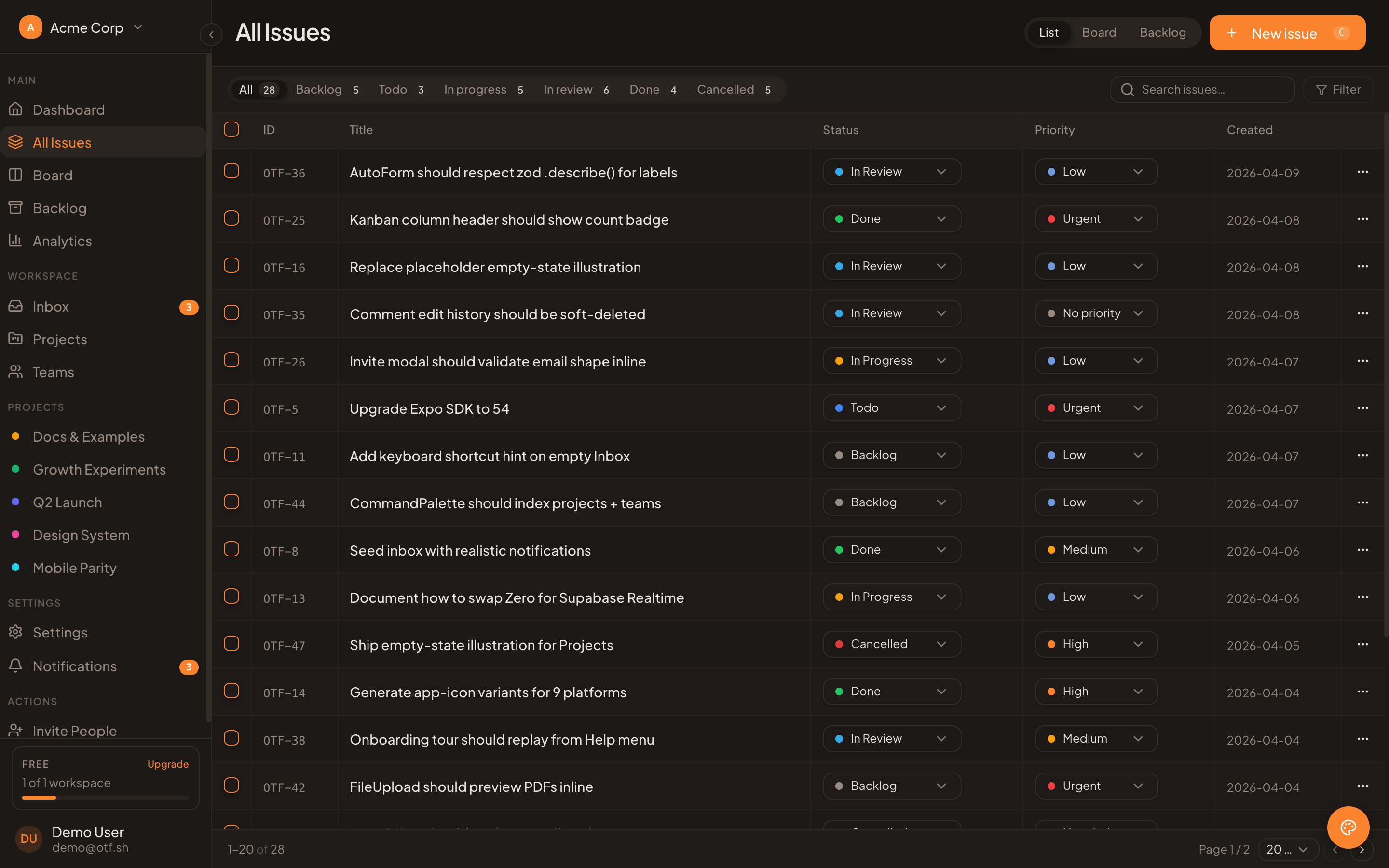
The SaaS Dashboard screen is an optional UI starting point; it does not include TanStack cross-page selection or bulk actions.
The selection map is keyed by those IDs. Keep it in state owned by the page or table controller so it survives a data-page change. Do not derive the request from the currently rendered row objects: the visible page is only a slice of the data, while the state can include IDs selected on earlier pages.
Keep selection when the page changes
With server pagination, the browser usually holds only one page of rows. TanStack’s manualPagination option tells the table that pagination happens outside its client-side row model. In that mode, getSelectedRowModel() can return selected row objects only for rows present in the current data array. The row-selection state can still retain IDs for rows on other pages.
That distinction matters when building a bulk request. Use the controlled selection state as the source of selected IDs, then filter it to entries set to true:
const selectedIds = Object.entries(rowSelection)
  .filter(([, selected]) => selected)
  .map(([id]) => id);

async function archiveSelected() {
  if (selectedIds.length === 0) return;

  await fetch('/api/projects/bulk-archive', {
    method: 'POST',
    headers: { 'content-type': 'application/json' },
    body: JSON.stringify({ ids: selectedIds }),
  });
}
The example is intentionally small. In a real screen, clear stale IDs when the user switches workspaces or changes to a different dataset. If the action should apply only to currently filtered results, include the filter definition or a server-created selection token as part of the request; do not quietly treat “selected on this page” as “selected everywhere.”
11 production screens. Login and database wired.
The SaaS Dashboard Kit includes login, a database, and a working dashboard. Live demo at saas.otf-kit.dev.
Make “select all” mean one thing
A checkbox in the header can mean “select the rows on this page.” It does not automatically mean every record matching a server-side search. Make the label and behavior explicit. For example, first select the 25 visible rows, then offer a separate action such as “Select all 418 matching projects.”
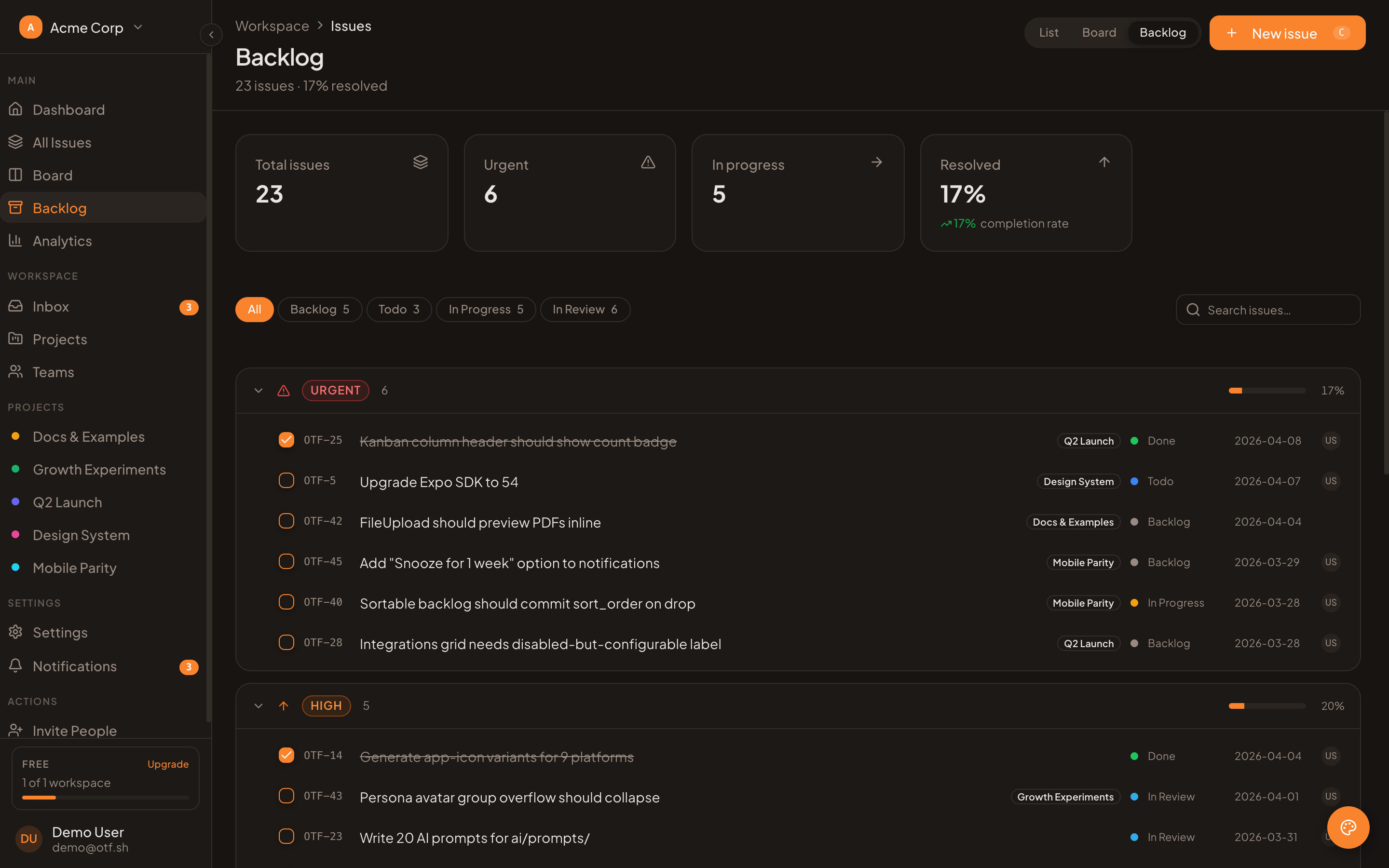
This real catalog screen is sample SaaS UI only; it does not demonstrate cross-page selection or bulk-action behavior.
For large result sets, sending hundreds or thousands of IDs may be a poor fit. A more scalable design stores a server-side selection scope: the authorized query or filter plus a short-lived token, with exclusions for rows the user unchecked. The server evaluates that scope when the action runs. Treat this as a different mode from the list of explicit IDs, and show the user which mode is active.
For explicit ID selection, keep the selected-ID map across page requests. For “all matching,” keep the query scope and exclusions separately. Do not overload an empty ID list to mean “all records”; that ambiguity can turn a no-op into an unexpectedly broad operation.
Validate every ID on the server
The browser is not an authorization boundary. A user can edit a request, replay it, or substitute IDs from another account. The server should authenticate the caller, derive the tenant or workspace from that session, and query only records the caller is allowed to change. Never trust a tenant ID supplied by the table or model as proof of access.
Before changing anything, validate that each requested ID exists in the authorized scope and is eligible for the operation. Decide what to do if one record is missing or has changed since it was selected: reject the whole batch with a clear conflict, or return a per-record result. Do not silently skip failures and tell the user that every item changed.
For an archive endpoint, the server-side flow should be roughly:
const ids = parseBoundedIdList(requestBody.ids);
const workspaceId = session.workspaceId;
const records = await repository.findArchivable(ids, workspaceId);

if (records.length !== ids.length) {
  return Response.json({ error: 'Some selected records are unavailable.' }, { status: 409 });
}

await repository.archive(ids, workspaceId);
return Response.json({ archived: ids.length });
Use parameterized database calls, cap batch size, and apply the same policy checks as the single-record route. If an action is expensive or irreversible, require confirmation and make retries safe with an idempotency key. A double click or network retry should not send duplicate invitations, charge twice, or trigger the same external side effect twice.
If the list changes while the user is selecting, decide whether the action applies to the record as it exists now or to the state they originally reviewed. For sensitive changes, include a version or updated-at value with each selected row and reject stale records for confirmation. For ordinary archive actions, a server response can identify records that were already archived. Either way, keep the final decision in the server transaction; a client-side snapshot can help explain the action but cannot prevent a concurrent update.
Give the user a reliable result
Show how many records are selected and provide a clear way to clear the selection. If selection persists between pages, keep that count visible after navigation. For destructive or hard-to-reverse actions, name the action and record count in the confirmation step.
After the server responds, report the actual outcome. A batch may succeed for some rows and fail for others because permissions or record state changed after selection. Show which items succeeded, which did not, and why. Refresh the affected rows and clear only the IDs the server confirms were processed. Preserve the remaining selection so the user can retry or inspect it.
Test the behavior with a selection spanning at least two pages, a sort change, a filter change, a workspace switch, a deleted record, an unauthorized ID, a partial failure, and a retried request. The important assertion is that every server-side effect is scoped to the authenticated workspace and the intended stable IDs—not merely that the checkboxes look selected.
Also test keyboard access and the status message announced after a bulk action. The header checkbox should expose its mixed state when only part of the current page is selected. A successful action should move focus predictably and announce the processed count; a conflict should identify that the list needs review. These small details help people recover from the same cross-page edge cases that can otherwise look like lost state.
Where a SaaS starter fits
The OTF SaaS Dashboard is an optional editable app starting point with data tables, projects, and teams. Its public page does not claim to include this row-selection or bulk-action implementation. You would add the table state, selection UX, API route, authorization checks, and database operation in your own code. For the related table foundation, see the data-table guide. Check the current kit pricing before you budget.
Sources
- TanStack Table v8 row selection guide — row-selection state,
getRowId, and the manual-pagination behavior described above.
Ship the product, not the setup.
- 11 production screens — auth, team, analytics, and settings
- Login and a real database are wired in
- AI configs pre-tuned so your agent extends instead of regenerates