Expo apps hide launch bugs your dev client never shows: fonts, routes, filters
Your Expo dev client will not flag several kinds of bug that matter before launch, including fonts that never load, menu links to screens that do not exist, filters that match nothing, and settings you can reach only during onboarding. Check them by hand on a release-like build, then turn each check into a line in CI or a small test so it stays fixed.
These six come from one audit, not a survey. One React Native developer, Najmul Hasan, audited a finished Expo app and listed six bugs that the dev client never showed. None of the findings were architectural. They were small errors that stayed hidden because the same paths were tested in the same dev client every day. The pattern is plausible for many apps built this way, but it is one app's audit, so treat the list as a walk-through, not a measurement.
Why the dev client hides them
The dev client loads the same screens, with the same demo rows, through the same taps. A menu item you have never opened, or a filter you have never tapped with real data, stays invisible. A release-like build changes what the app loads: the bundled fonts, the production routes and the data your users actually have. The source's core advice is to audit that build, not the dev client, and to walk every screen and every link.
Build a preview binary for the walk-through. The source uses an EAS preview profile for Android (eas build --platform android --profile preview). Your own build command will differ, but the rule is the same: test what users install.
1. Fonts that never loaded
The app declared custom fonts, including a dedicated Bengali typeface, but nothing loaded them. React Native does not warn loudly. Text renders in the system font, and the design you think you are shipping is not the one on screen.
The fix is to load every font the app uses in one place, with useFonts in the root layout, and to hold the splash screen until the fonts are ready. The check is simple: every fontFamily string in your code must appear in the map passed to useFonts. A grep finds the mismatches in seconds.

One codebase. iOS, Android, and web.
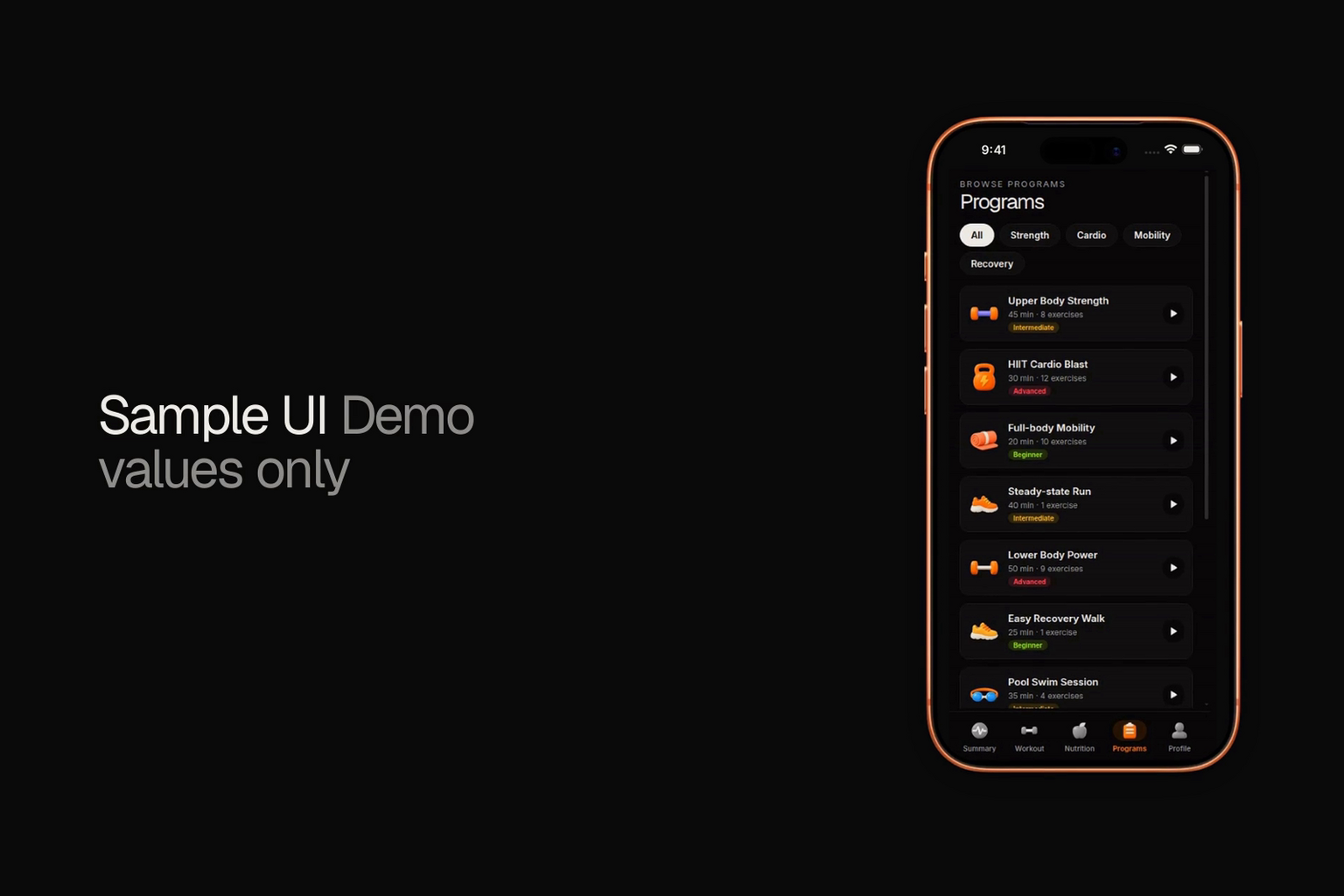
The Fitness Kit is a mobile starter with its own API, with sign-in and a database. Live demo at fitness-preview.otf-kit.dev.
2. A menu item that points to nothing
A Profile menu entry linked to a route with no screen behind it. In Expo Router, routes are files, so a typo or a deleted screen leaves a link that goes nowhere, and the app shows the gap only when someone taps it.
The source suggests turning on typed routes (experiments.typedRoutes in app.json) and running tsc --noEmit in CI. A link to a missing route then becomes a type error before the build leaves your laptop.
3. A filter tab that was always empty
A "verified" tab on the community screen filtered on a condition that no record ever satisfied. It looked fine with a few demo rows, and nobody tapped the tab with real data.
For each filter, seed at least one record that should match and assert that the result is not empty. A unit test for the filter function is enough. Two records, one matching and one not, catch the empty tab, and the test costs a few lines.
4. A score shown on the wrong scale
The trust score was stored on one range and drawn as if it sat on another, so the badge showed progress that did not exist. Any number a user reads as good or bad needs one owner for its range. Put the maximum in one constant, import it into the code that writes the score and into the component that draws it, and convert in one helper.
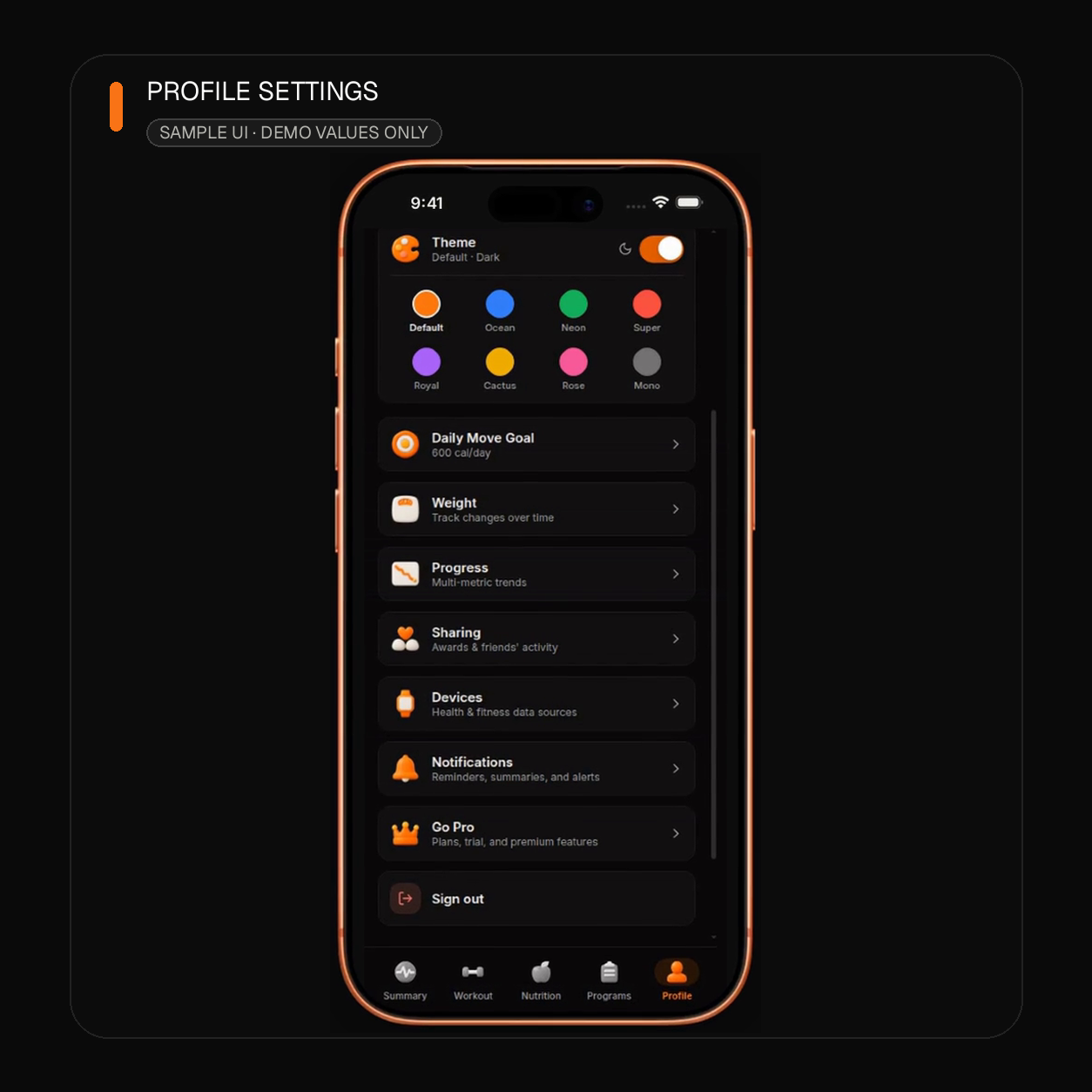
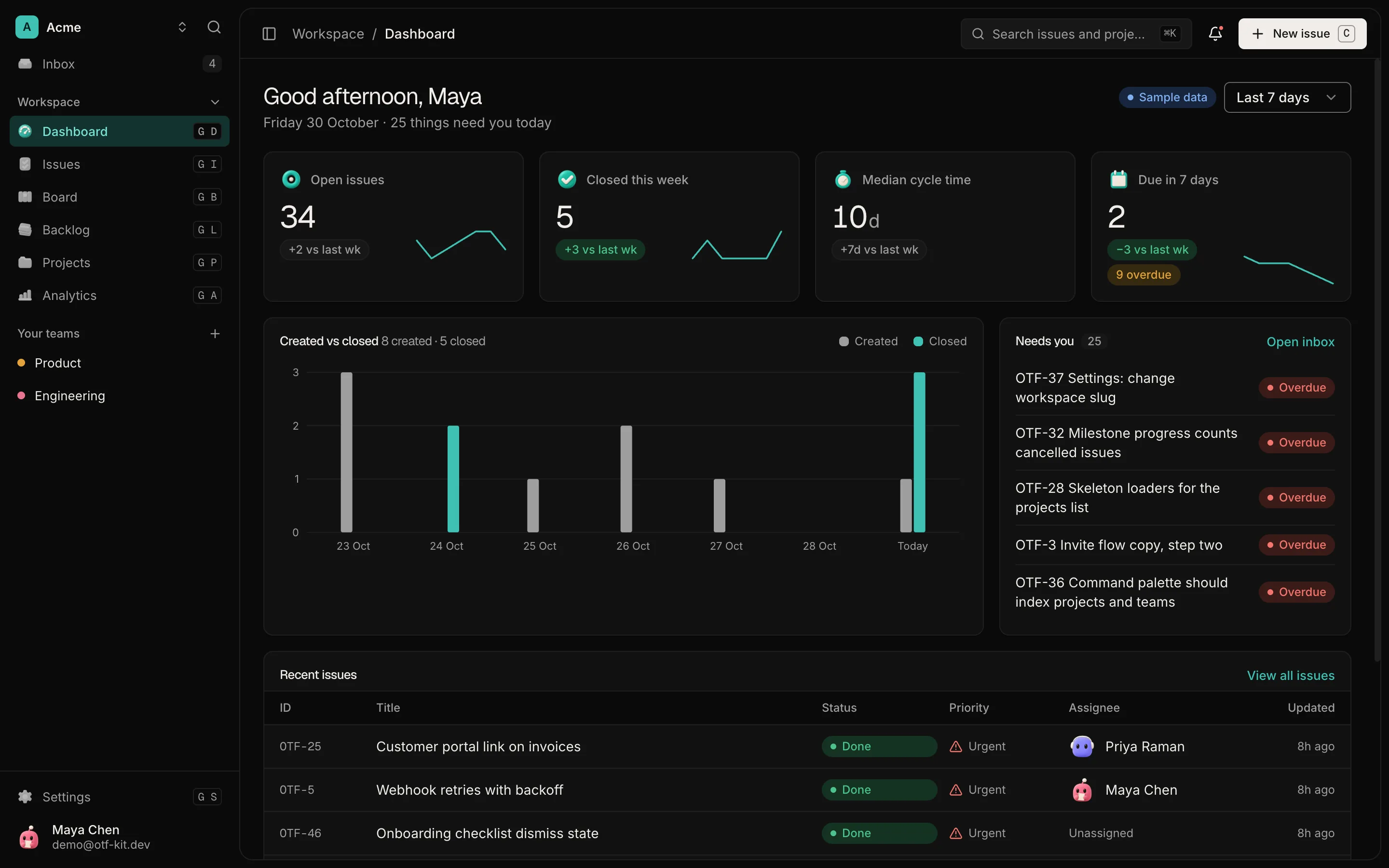
Sample UI with demo values. Shows the screen layout only; it does not show the bugs, and the kit does not detect them.
5. A setting you can reach only during onboarding
Language selection existed only in the first-run flow. A user who picked the wrong language had no way back. The source's rule is that every choice made during onboarding needs a permanent entry point in Settings, and a fresh install should reach it in under three taps. Test it that way: delete the app, install it, and count the taps.
6. Dead files in the bundle
An old mockup file stayed in the repo. It does no harm until someone imports it or a reviewer spends time on it. Run an unused-file finder once before launch, and delete only what you have read and confirmed is unused.
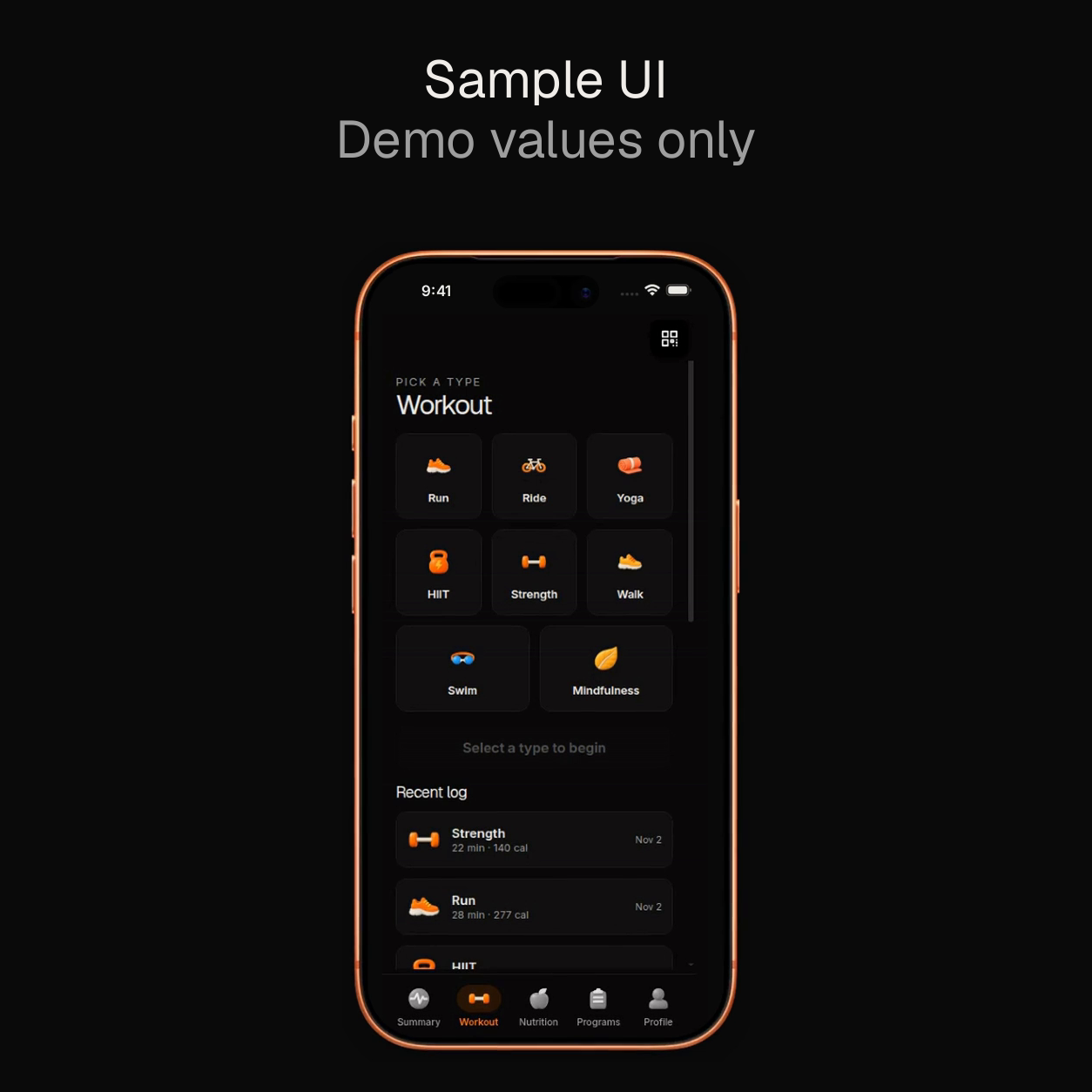
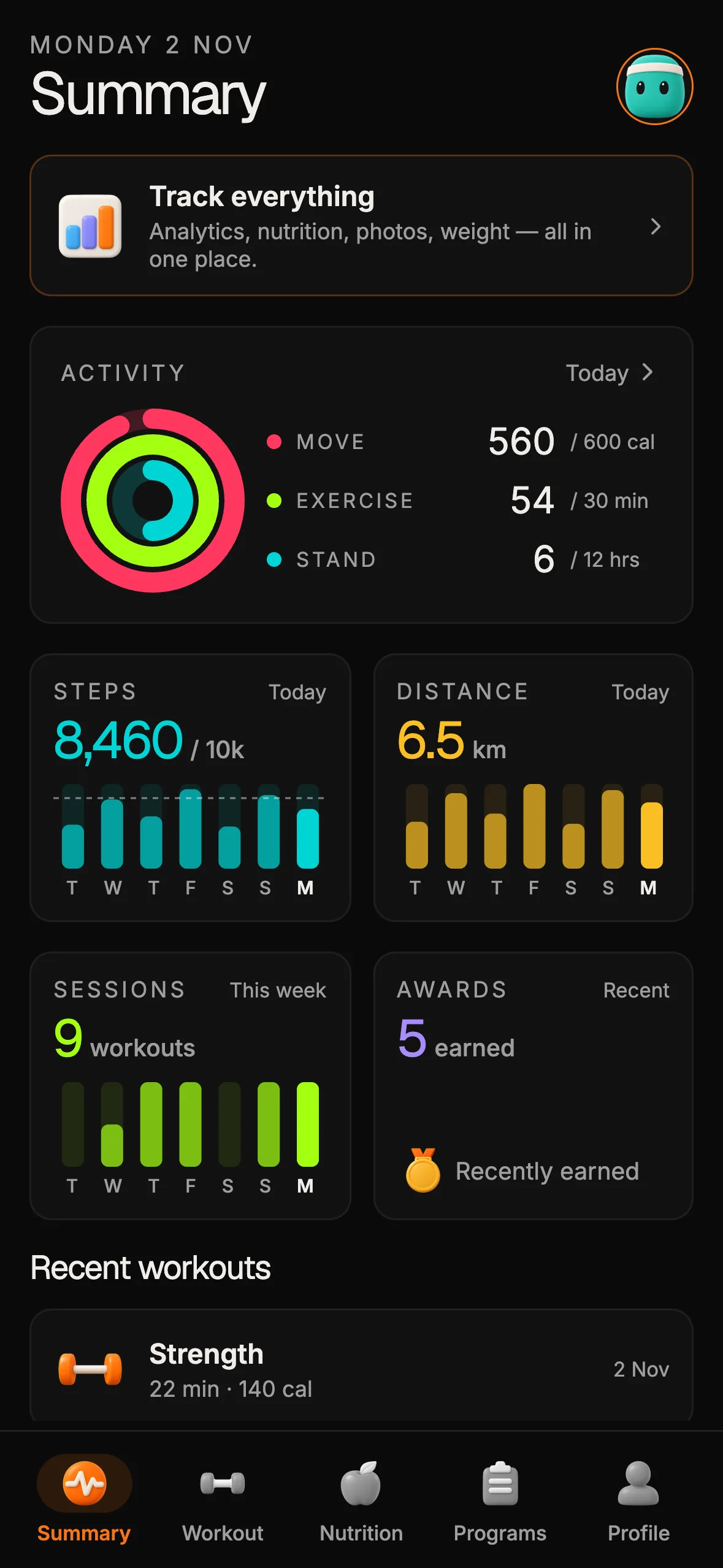
Sample UI with demo values. Shows the screen layout only; it does not show the bugs, and the kit does not detect them.
A walk-through you can run in an afternoon
- Install the release-like build on a real device, not the dev client.
- Open every menu item and every link, and note any screen that does not open.
- Tap every filter and every sort with real data, and note any tab that returns nothing.
- Check every score, badge and percentage against its stated range.
- Find every onboarding choice and confirm it has a Settings entry.
- Run the unused-file check, and read each result before you delete anything.
If you have only one afternoon, start with the first three items. Fonts, routes and filters are the checks that pass in the dev client and fail on a device most often, and each one can become a test or a CI step. The score and dead-file checks matter too, but they are slower, because they need you to read the code and decide what is really unused. Write down the build number and the result of each step as you go, so the next release starts from what you found last time rather than from memory.
Save the list as a file in the repo and repeat it before each release. The same bugs return when a new screen is added without a route check or a filter test. For the store side of the same launch, see the app store submission checklist for AI-built apps, and for links between screens, see the deep-linking checklist for Expo production.
Where the Fitness kit fits, and where it does not
The Fitness kit is a mobile template for iOS, Android and web, built on one Expo codebase with a real database. Its screens include onboarding and profile and goals, so the walk-through above applies to it as it does to any app you start from it. Walk those screens on a release build before you rely on them.
The kit does not promise that your fonts and locales are wired, that every route is covered, or that your filters return what your users expect. Those checks are yours. You can click through the running app at the live demo before you decide.
Sources
- Najmul Hasan, "Expo React Native Pre-Launch Checklist: 6 Bugs Your Dev Client Won't Show You", DEV Community, posted 31 Oct 2026, read 2 Nov 2026: https://dev.to/najmulhasan-dev/expo-react-native-pre-launch-checklist-6-bugs-your-dev-client-wont-show-you-e4f
- Fitness kit scope, checked 2 Nov 2026: https://otf-kit.dev/md/templates/fitness-kit.md
Ship your first screen tonight — free starter in your inbox
The quickstart, the SDK repo and the live kit demos, on this screen and in your inbox.
No spam. Unsubscribe any time.