One iPhone missed your Expo update? Check runtime, channel, and update ID
An EAS Update reaches your Android testers and most iPhones, but one person still sees the old screen. Before you publish again, find out which update that installed app is eligible to receive and what its last request returned. A device model can be a useful clue, but it does not explain the delivery path by itself.
Treat the incident as a comparison between one working install and one missing install. Record the app version, platform, build identifier, runtime version, update channel, branch, and currently running update ID for both. Then compare the update you published against those facts. This separates a compatibility mismatch from a routing mismatch, a download failure, or an update that downloaded but could not launch.
That distinction matters because repeating a publish can send another update down the same wrong path. It can also make the timeline harder to read. Preserve the current state first, then change one variable at a time.
Start with the installed binary
Ask the affected tester to open the app they actually use and report its version and build number. Confirm whether it came from the App Store, TestFlight, an internal distribution build, or a local development build. If possible, compare it with a working iPhone on the same app release. Do not infer the installed native binary from the source branch or the update you most recently published.
An over-the-air update can change compatible JavaScript, assets, and other update content. It cannot replace native code already compiled into the installed binary. If a change requires a native dependency, configuration plugin, entitlement, or other native change, the correct fix may be a new store or internal build. A new OTA cannot make an older binary contain native code it never shipped with.
Keep one row per test install:
| Field | Working install | Affected install |
|---|---|---|
| Platform and OS version | Record exact values | Record exact values |
| App version and build | From the installed app | From the installed app |
| Runtime version | Read from the running app | Read from the running app |
| Update channel | Read from the running app | Read from the running app |
| Current update ID | Read from the running app | Read from the running app |
| Last check result | Status and timestamp | Status and timestamp |
Use values collected from each installed client, not values copied from the release dashboard. A dashboard tells you what you published; client values tell you what the device is asking for.
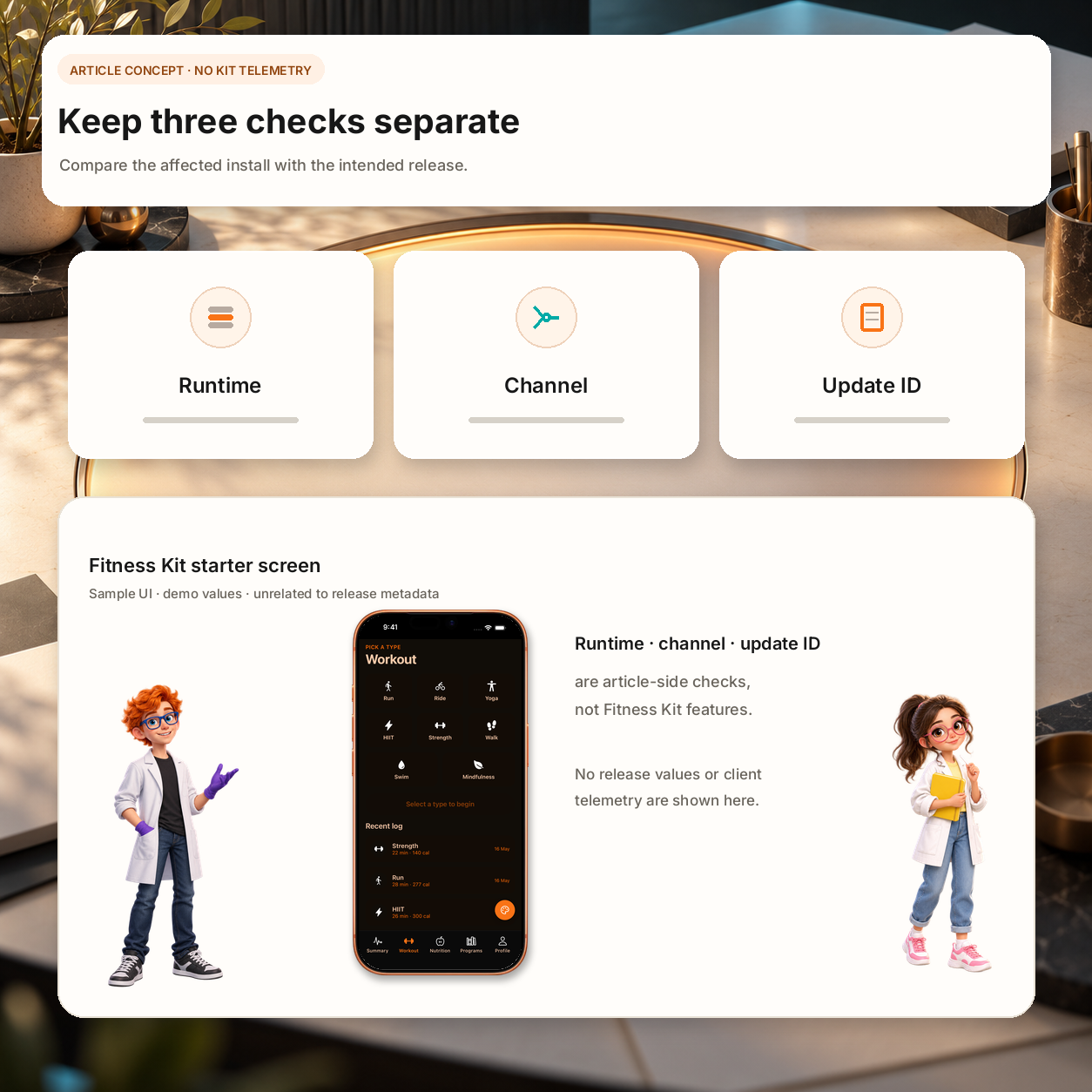
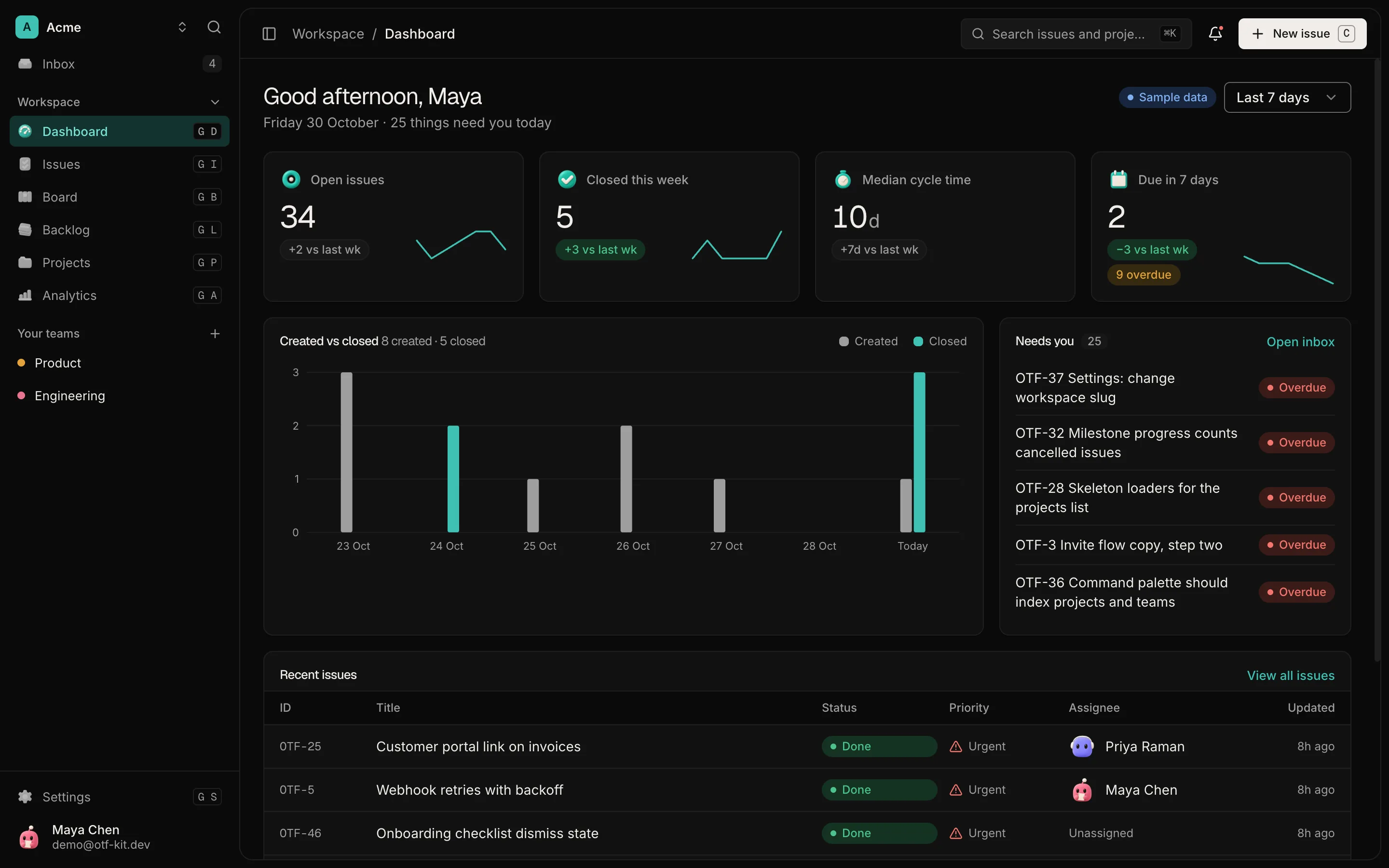
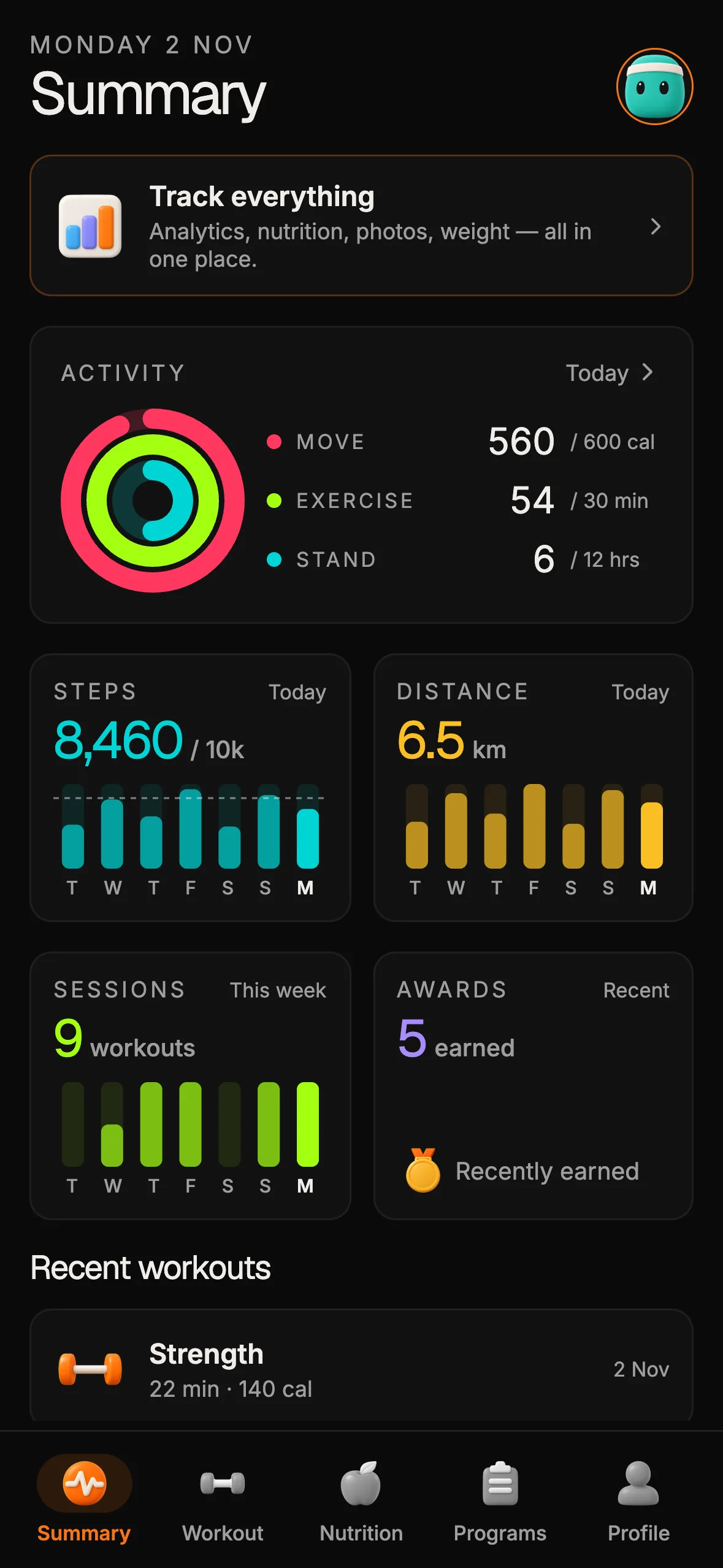
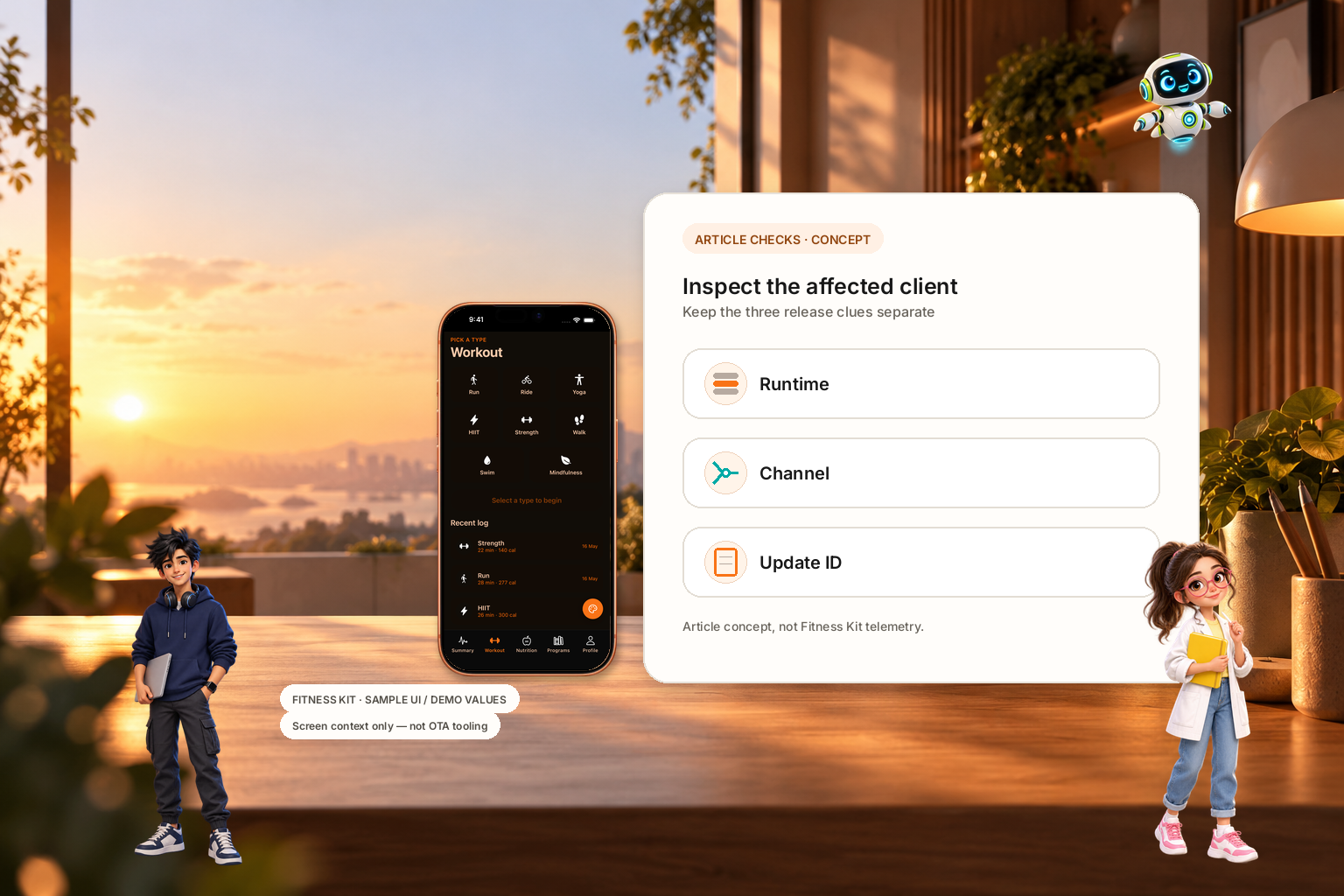
Runtime, channel, and update ID are illustrative article-side checks, not Fitness Kit features or telemetry. Fitness Kit appears only as sample UI with demo values.
Compare runtime versions before changing routing
EAS Update uses a runtime version to keep an update compatible with the native code in a build. An update published for a different runtime is not a candidate for that binary. This can produce a pattern that looks device-specific when the affected person installed an older build or a build produced from a different native dependency set.
Check the runtime on both clients and the runtime attached to the published update. If the affected iPhone has a different runtime, identify which binary it is running and why. It may need to install a newer build before it can receive the update you intended. Do not change the runtime value just to make the update appear eligible: the value represents compatibility, so making unlike binaries share a label can expose users to an incompatible bundle.
Also check whether your configuration uses a single runtime policy or platform-specific values. If iOS and Android builds were produced at different points in a native upgrade, do not assume that both platforms share the same runtime. The relevant question is whether this exact installed client is compatible with this exact update.

One codebase. iOS, Android, and web.
The Fitness Kit is a mobile starter with its own API, with sign-in and a database. Live demo at fitness-preview.otf-kit.dev.
Follow the channel to the branch
Next compare the channel embedded in the installed build with the channel targeted by the update. In EAS Update, a build’s channel maps to a branch; publishing to a different branch may leave the client correctly checking a place where your new update does not exist.
Inspect the mapping and the update record instead of relying on the branch name you intended to use. Confirm the update was published for the right platform, branch, and runtime. Then compare the affected iPhone with a working install. If their channels differ, determine whether that is expected—for example, a preview build may intentionally follow a preview channel—or a build-configuration mistake.
To correct an unexpected channel or branch, the official guide uses eas channel:edit <channel-name> --branch <branch-name> to point the channel at the intended branch, and eas update to publish. Use the identifiers from the installed build and the update you are investigating. These commands change the mapping or publish a new update; they do not prove that the device downloaded or launched anything.
Read the client’s update request
Expose a small diagnostics screen or a support-only log that records the runtime, channel, and update ID the app reports for itself. Capture the last check time, result, and any error code or message that your app can safely collect. Avoid logging access tokens or other secrets, and do not ask a customer to send a raw network trace containing credentials.
If the metadata still does not explain the difference, inspect the update request and response using Expo’s documented debugging workflow. Compare the affected device’s request with a working client. Look for the platform and runtime sent by the client, the response status, whether an update manifest was returned, and whether an update was downloaded or rejected. A missing manifest and a launch failure are different problems, even if both leave the old UI visible.
Check network conditions as well: the iPhone may have been offline, behind a proxy, or unable to reach the update service during the check. Test a deliberate foreground check on a stable network and save the outcome. Do not conclude that delivery is broken because the app did not update immediately after publish; update checks and application behavior depend on the app’s configuration and lifecycle.
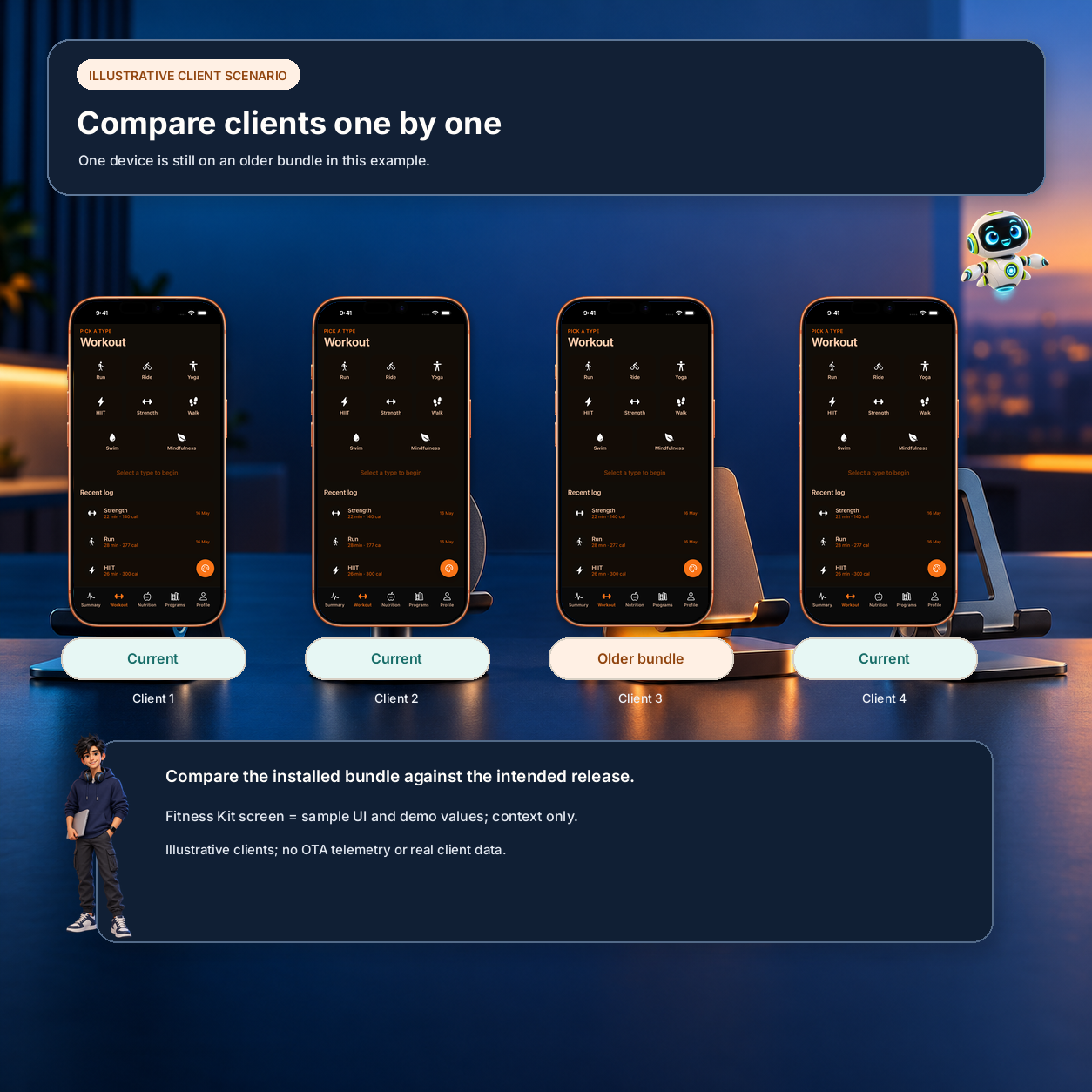
Illustrative client comparison only, not real client data or a test result. Fitness Kit screens are sample UI with demo values; no OTA telemetry or rollout capability is implied.
Separate download from launch and rollback
If the client reports the new update ID but still shows old behavior, investigate whether the update actually launched. The official guide says that when a new update crashes before the root component renders, the app can keep showing the code embedded with the build. Check startup errors before assuming the update never reached the device.
Compare the current update ID before and after a controlled restart, and capture startup errors on the affected install. Test the same update on a build with the same platform, runtime, and channel before asking the user to reinstall. If the client falls back, use the error and update IDs to find the failing bundle or asset rather than repeatedly publishing a new copy of the same change.
Keep a compact incident timeline: publish time and update ID; affected build and runtime; channel-to-branch mapping; check request result; download result; launch result; and any rollback or fallback. That record makes it possible to say which stage failed and to verify the correction on the same client.
Make the next release easier to diagnose
For future releases, make the update ID and runtime visible in a support screen, and keep the channel tied to the build record. Test at least one installed binary from each release channel, not only a simulator or the newest local build. Include one older but still supported production binary if your runtime policy allows it to receive updates.
Use a small release checklist:
- Confirm the installed build and platform of the affected device.
- Compare its runtime with the update’s runtime.
- Follow the embedded channel to its mapped branch.
- Confirm a matching update exists for that platform and branch.
- Read the client request and response, then check download and launch separately.
- Verify the corrected update ID and visible behavior on the same device.
This is a diagnosis sequence, not a promise that every OTA issue has the same cause. If native code changed, ship a new binary. If the channel is wrong, correct the release mapping through your normal review process. If the update was downloaded but rolled back, fix the startup failure and validate recovery. If the request never reached the service, investigate connectivity and configuration.
Where a starter kit helps—and where it stops
If you are starting a new cross-platform app, the Fitness Kit is an Expo-based application foundation with sign-in, a database, and fitness screens. It can give a new project a working app structure to extend, but it does not diagnose an existing app’s EAS Update configuration, supply OTA telemetry, or guarantee that a particular installed binary will receive an update. For an existing production app, begin with the client, runtime, channel, and request checks above.
Sources
- Expo: Debugging EAS Update — checked 2 Nov 2026. Covers unexpected channel, runtime, and branch, missing updates, a new update that crashes before the root component renders, and failed asset downloads.
Related reading: plan a rollback for an EAS Update.
Ship your first screen tonight — free starter in your inbox
The quickstart, the SDK repo and the live kit demos, on this screen and in your inbox.
No spam. Unsubscribe any time.