How long does your first App Store review take? Apple's numbers and what restarts it

Apple says most App Store reviews finish within two days. If your first launch took a week, the time almost always went to a rejection or a reviewer who could not get past your sign-in, not to the queue itself.
What Apple publishes
Apple's App Review page says the team works around the clock and typically reviews at least 50% of submissions in less than 24 hours, and 90% in less than 48 hours. Those are shares of all submissions. They are not a promise about your app, and they say nothing about a second or third round.
So the first pass is the easy part. The delay comes from what happens after the first decision, and that is the part you can prepare for.
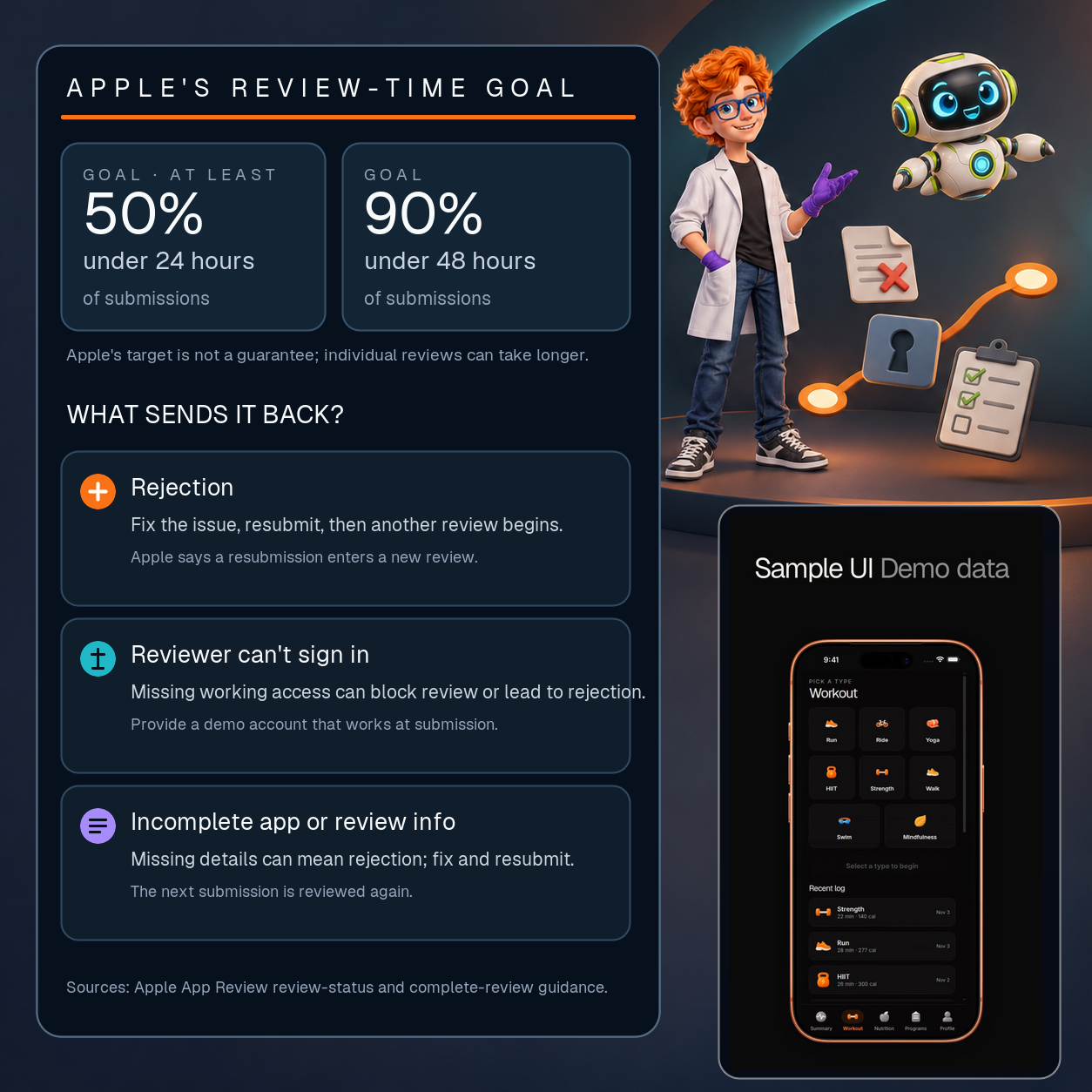
Apple's stated goal is to review at least 50% of submissions in under 24 hours and 90% in under 48; individual reviews can take longer.
The three things that restart the clock
Three things usually restart the clock on a first launch.
1. A rejection. Apple sends the build back with a reason. You fix it, build again and submit again, and the new submission goes through review as a new submission. Apple's page does not give a resubmission time, so plan for one before you pick a date.
2. A reviewer who cannot sign in. If your app needs an account to show anything useful, the reviewer has to get past the login screen first. Put a working demo login in App Review Information, with an account that already has data in it. Without one, the review stops at the first screen that asks for credentials.
3. An app that looks unfinished. Apple's review guidelines call this App Completeness. Placeholder screens, buttons that do nothing and features that only work after manual setup all get flagged. The fix is to test the build on a clean install, with nothing pre-filled from your own device.

One codebase. iOS, Android, and web.
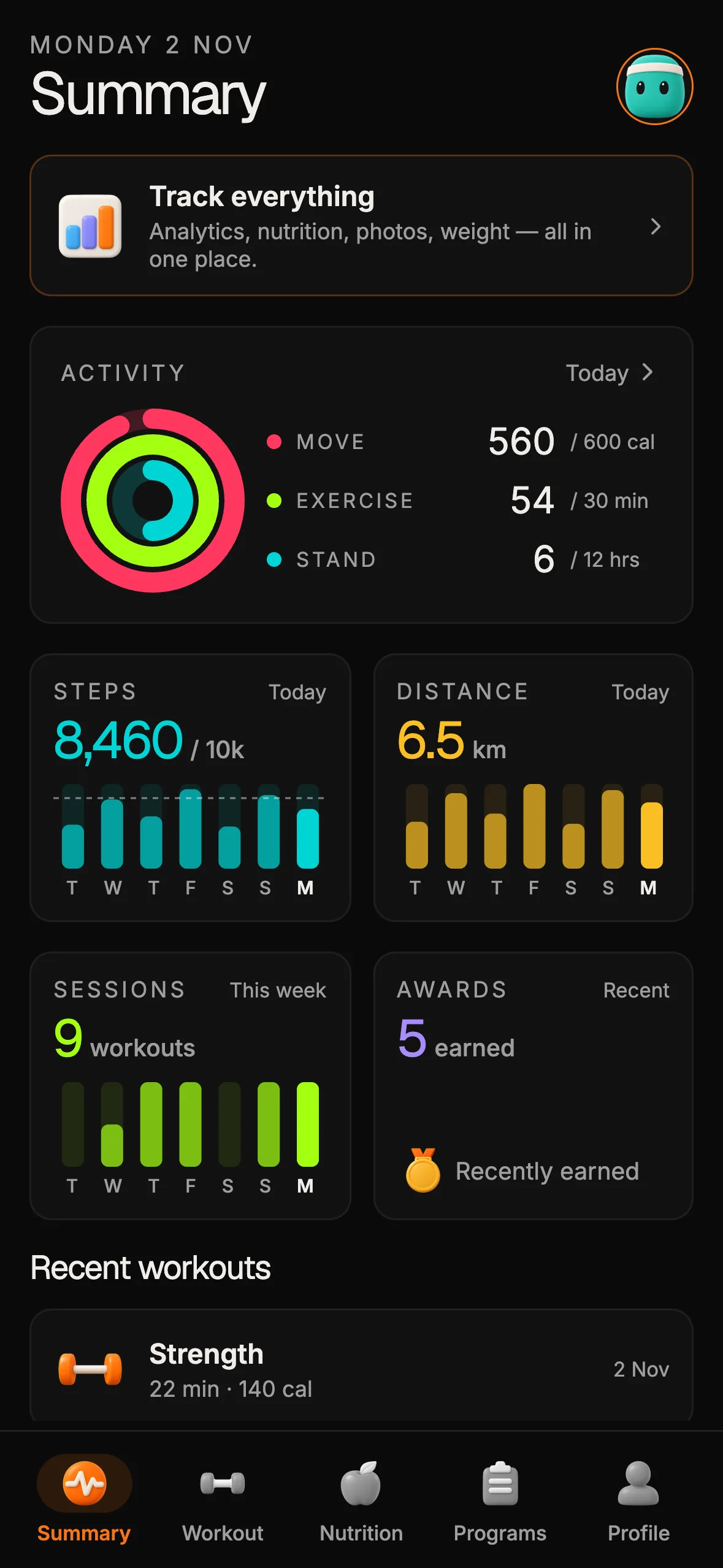
The Fitness Kit is a mobile starter with its own API, with sign-in and a database. Live demo at fitness-preview.otf-kit.dev.
A timeline you can plan around
This is an illustration of how the restarts add up, not data from any launch.
- Day 0. You submit the build with the demo login in App Review Information.
- Days 1 to 2. Apple's first decision, inside the window the App Review page describes for most submissions.
- Day 2, rejected. You read the reason, fix only what it names, and resubmit that day.
- Days 3 to 5. The second review runs. If the demo login works, the review moves on. If it does not, the same restart happens again.
The difference between a two-day launch and a week-long one is usually whether the reviewer could get in and finish the core flow on the first pass. Plan the launch date for the week-long case, and treat the two-day case as a bonus.
What the reviewer does in the first few minutes
Reviewers open the app, sign in with the demo account and walk the main flow. They look for crashes, dead buttons and screens that stop at an empty state. Before you submit, run the same walk on a clean install:
- Delete the app and reinstall the exact build you will submit.
- Sign in with the reviewer account only. Do not use your own device session or a saved login.
- Go through sign-up, sign-in and onboarding, then open every tab and every screen the navigation shows.
- Try each primary button once. Anything that does nothing gets removed or finished.
- Check that the seeded account has data on every screen, so no list looks broken.
If a step needs a setting only you know, such as a sandbox key or a feature flag, the reviewer will hit it too. Move that setting into the build or into the demo account before you submit.
What to do after a rejection
A rejection is a reply with a reason, not a verdict on the whole app. Work through it in this order:
- Read the reason and the screen or guideline it names. Reproduce the problem on a clean install before you change anything.
- Fix the named issue, and check the same area for the same problem. A second rejection for the same thing costs another full round.
- If the reason is unclear, ask in the App Store Connect Resolution Center before you rebuild. Apple's reply tells you what to change, and a guess costs a round.
- Write a short note in the resubmission explaining what changed. It helps the reviewer find the fix without re-reading the whole app.
Keep the demo login working through every round. A rejection often happens after a successful sign-in, and an expired reviewer account turns a small fix into a new delay.
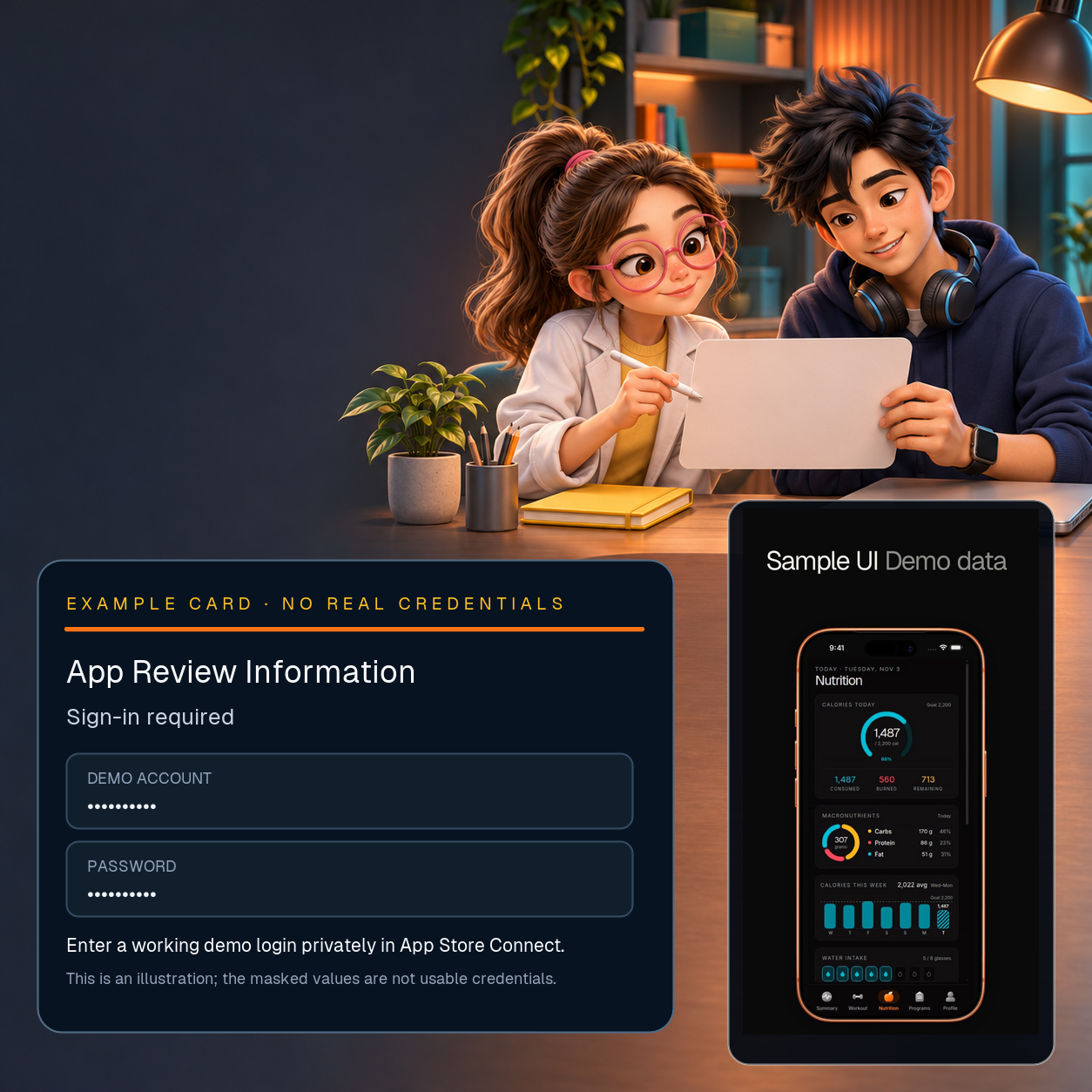
Illustrative App Review Information card. Provide working demo credentials privately; the masked values shown here are placeholders, not usable login details. The Fitness Kit phone UI is sample data.
Why a demo account beats a note in the review box
Some teams put a sentence in the review notes, such as "sign in with Google" or "create an account and it will work." A reviewer with no matching account, or with a sign-in that needs a code sent to a phone they cannot reach, is stuck either way. A working login with seeded data removes that guess. Use an email and password the reviewer can type, and make sure no step in the flow sends a code to a real inbox.
What to do before you set a launch date
- Create a demo account for the reviewer and write its login into App Review Information.
- Seed that account with realistic data, so every main screen has something to show.
- Install the build on a clean device and walk through the flow above.
- Remove placeholder text, dead buttons and any screen you have not finished.
- Put one resubmission inside your launch window, so a rejection does not move the date.
The Fitness kit gives you sign-in, sign-up and onboarding to test against, with the main screens already built on Expo SDK 58. It does not give you a reviewer account, a store listing or a review outcome. Those are yours to set up, and the checklist above is where to start.
Want to see it running first? Open the live Fitness demo on your phone and test the sign-in path the reviewer will use.
Where this does not apply
The Fitness kit is a native Expo app, so the review path can differ from other app types. The kit does not predict approval time for your app, and nothing here guarantees a first-pass approval.
If you are still setting up the submission itself, start with the App Store submission checklist for an AI-built app. For the Apple-specific gaps, read the App Store submission article on what reviewers flag.
Sources
- Apple, App Review status (developer.apple.com/help/app-review/after-submitting-for-review/review-status/). Re-opened 3 Nov 2026. Quoted: "reviewing at least 50% of submissions in less than 24 hours and 90% in less than 48 hours."
Ship your first screen tonight — free starter in your inbox
The quickstart, the SDK repo and the live kit demos, on this screen and in your inbox.
No spam. Unsubscribe any time.