Transactional email your AI-built app already owes users from day one

Your AI-built app has working signup, working sign-in, and working password reset. You tested all three yourself and watched each one succeed. What you never saw is the email each flow sends, because you were looking at the app while the most trust-sensitive part of the experience landed in an inbox you never opened.
Transactional email is the surface builders forget. These are the messages your app sends because something happened: confirm your address, reset your password, here is your receipt, your sign-in method changed. Users judge your app by these emails far out of proportion to the effort they take. A polished app that sends a raw default password-reset email from an unfamiliar sender reads as a side project. A simple app whose emails arrive promptly, read clearly, and look like they came from the same product reads as a business.
The good news is that the work is small and the map already exists. If your auth runs on Supabase, the platform documents two categories of email templates with a variable system for personalizing them. One focused session before launch covers the emails your users will meet in their first week, and this post walks through exactly which ones and what to check.
The emails your app sends before you write any
Supabase's email template system falls into two categories: authentication emails and security notifications. The authentication set covers confirm sign up, invite user, magic link or OTP, change email address, reset password, and reauthentication. The security set covers password changed, email address changed, phone number changed, sign-in method linked or removed, and verification method added or removed. Security emails only reach users when the matching notifications are enabled at the project level, so part of your setup is confirming those switches are on rather than assuming they are.
Read that list again and notice how many of them fire during a normal first week. A new user triggers confirm sign up on day one. A returning user who forgot their password triggers reset password on day three. Anyone who changes their address or links a new sign-in method triggers the security notifications. None of these required you to write sending logic. They fire because auth events happened, which means they carry your product's name into inboxes from the very first day whether you designed them or not.
This is why transactional email belongs in your pre-launch pass alongside the hardening work your auth already received. The sign-in flow can be bulletproof while the emails around it quietly tell a different story. Audit the full list in your project dashboard, confirm each template reads like your product, and enable the security notifications your users deserve. The defaults function. Your job is making them yours.
Default templates cost you trust
A default template does its job and nothing more. It delivers the link or the code, wrapped in generic wording, from a sender identity you did not choose. For a developer testing at midnight that is fine. For a new user deciding whether this app is legitimate, every generic element subtracts a little confidence. Three details decide whether the email builds trust or spends it: who it appears to come from, whether the subject states the action plainly, and whether the body tells the reader exactly what to do next.
Start with the sender. Emails from your own domain outperform emails from a shared platform sender on the one metric that matters here: the user recognizing you. Configure your project's sending identity before launch and send yourself every template to confirm what lands. Then read each subject line as a stranger would. "Confirm your signup" with your product name attached beats a bare token-format subject that looks like every phishing email the user deleted this month.
Then fix the body around a single action. Each authentication email exists so the user can do one thing: confirm, reset, verify, sign in. State that action in the first line, place the link or code immediately after, and add one sentence of context for the case where the user did not request it. The reset email should say what to do if the request was not theirs. The email-change confirmation should say the old address stays active until the new one is confirmed. These sentences cost nothing and answer the exact questions that otherwise become support tickets or, worse, silent churn.
Personalization is available without custom infrastructure. The template system exposes variables including the confirmation URL, a six-digit one-time code usable instead of the URL, the site URL configured in your authentication settings, and user metadata you can use to address people properly. A greeting that uses the name the user gave you, a footer with the product name they signed up for, and a reply path that reaches a human will put your emails ahead of most apps in your category.
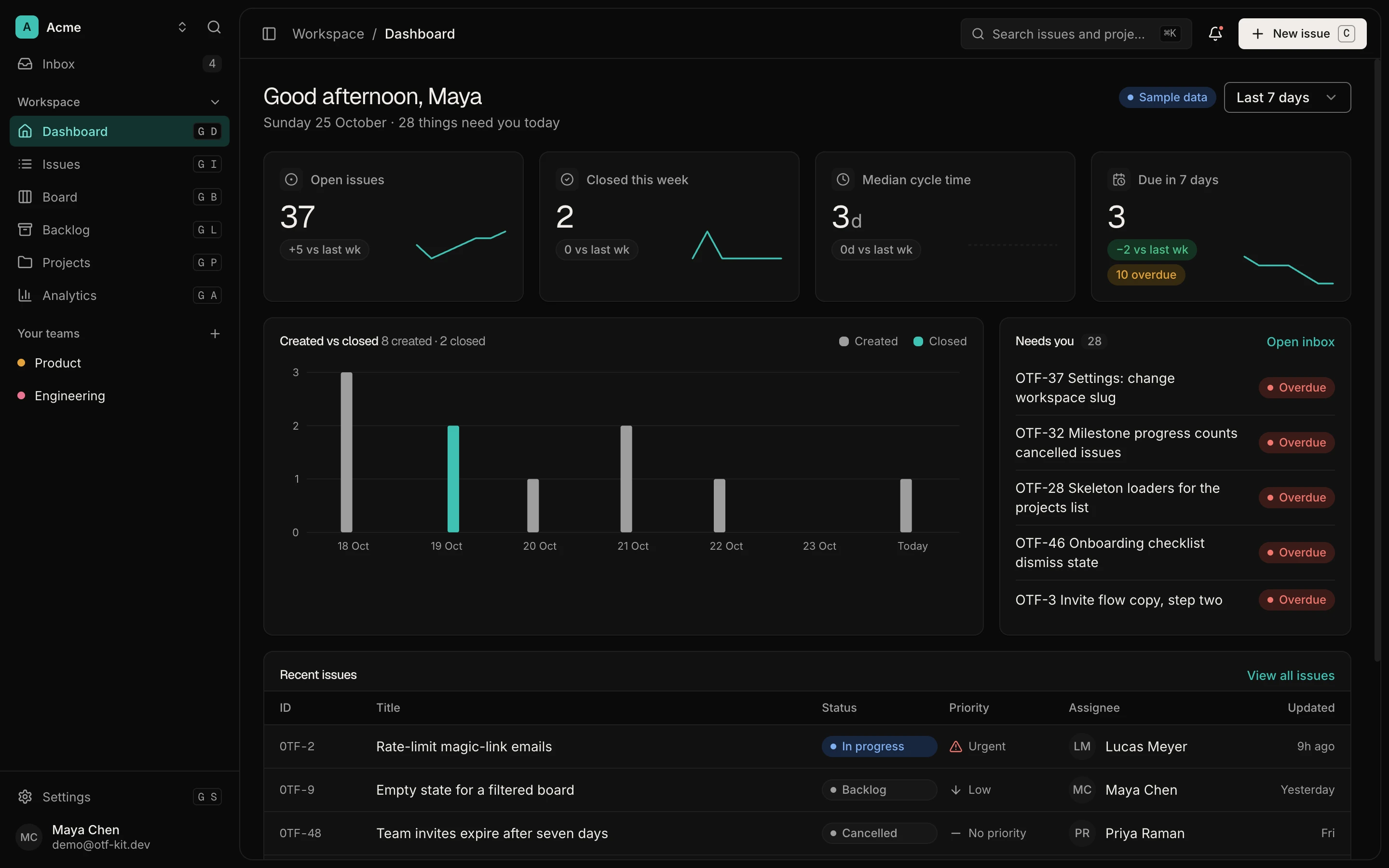
11 production screens. Login and database wired.
The SaaS Dashboard Kit includes login, a database, and a working dashboard. Live demo at saas.otf-kit.dev.
The four emails to fix first
You do not need to perfect a dozen templates this week. Four of them carry nearly all first-week trust, so fix these and schedule the rest.
First, confirm sign up. This is the first email a new user ever receives from you, which makes it your real first impression. Confirm the product name, the action, and what happens after the click. If your onboarding continues inside the app after confirmation, say so, because users who confirm and then stare at a generic success page with no next step often never come back.
Second, reset password. This email arrives at a moment of mild frustration, so clarity is everything. One action, one link, one fallback line for unrequested resets. Test it with an expired link too, because the error state after an old link is part of this email's experience and expired-link dead ends are where frustrated users abandon the recovery entirely.
Third, magic link or OTP. Passwordless sign-in lives or dies on delivery speed and code clarity. The six-digit code should be impossible to miss in the body, and the email should state its lifetime in plain words so users know whether to hurry. If your app offers both link and code paths, test both on a real device, because the handoff from inbox back into the app is exactly the kind of flow simulators misrepresent.
Fourth, the purchase receipt. This one usually comes from your payment setup rather than your auth provider, but users file it in the same mental folder as your product's emails. After a paywall converts, the receipt should confirm what was bought, what it costs, and where to manage it. The paywall work that earns the conversion deserves a receipt that protects it, so treat receipt copy as part of the purchase flow review, not an afterthought owned by nobody.
The client code that triggers these flows stays small. A password reset from an Expo app is one call, and the redirect behavior is governed by the allow list in your authentication settings:
// Trigger the reset email. The link it carries must match
// a redirect URL on your project's allow list, or the
// handoff back into the app fails after the user clicks.
await supabase.auth.resetPasswordForEmail(email);
Test the paths, not just the pixels
Previewing a template in the dashboard proves the layout renders. It proves nothing about the journey, and the journey is the product. For each of the four emails, run the complete path on a real device with a real inbox: trigger the event, wait for delivery, open the email, follow the link or enter the code, and land back in the app. Time each step. Anything slower than a few minutes of delivery deserves investigation before launch rather than after the first complaints.
The redirect configuration is where these paths most often break. The template variables include both the site URL from your authentication settings and the redirect URL passed by the client call, and the project enforces an allow list for redirects. That enforcement is a security feature, but it means a mismatched or unlisted redirect silently breaks the round trip. Verify the allow list covers every environment your testers touch, including the deep-link schemes your app uses to receive users back. The deep-link checklist your app already follows is the companion here: the email link and the app's link handling are two halves of one flow.
Mind the template variables while you test. A confirmation URL that wraps across lines in some clients, a code rendered in a pale color with weak contrast, a greeting that shows a blank where a name should be because the metadata field is empty for social signups. These are five-minute fixes each and every one of them is invisible until a real inbox reveals it. Send every template to addresses on more than one provider, since rendering and spam filtering differ across them, and fix what you find before testers or users ever see it.
One more path people skip: the unrequested-email case. Trigger a reset for an address, then open it hours later after expiry. Change an email address and read both the old-address and new-address notifications. Link and then remove a sign-in method. Each of these is a real user story, each has its own template, and each is cheaper to verify now than to explain later.
Treat receipts as trust infrastructure
Receipts deserve their own paragraph because they sit at the intersection of money and trust. A user who just paid is briefly anxious: did it work, what did I get, can I undo this. The receipt answers all three within seconds of the charge, or the anxiety converts into a refund request or a chargeback. Neither outcome reflects your app's quality. Both reflect a missing email.
Coordinate the receipt with the paywall it follows. The product name, the tier, the price, and the management link should match what the paywall promised, word for word where it matters. If your paywall testing discipline already changes one thing at a time, extend that discipline to the receipt: verify it after every pricing or packaging change, because a receipt describing last month's tiers is a small confusion that arrives at the worst possible moment.
Keep the receipt retrievable. Users search inboxes for receipts months later during expense reviews, tax season, or cancellation decisions. A consistent subject format with your product name turns that search into a success instead of a support ticket. This is unglamorous work with an outsized return: every receipt found instantly is a silent vote that your operation is professional.
Transactional email will never be the reason someone downloads your app. It is routinely the reason they stay, pay again, or recommend you. One session, four emails, real inboxes, real devices. Do it this week and your launch inherits a trust layer most AI-built apps never get around to building.
Sources
- Supabase documentation on email templates, covering the authentication and security-notification categories, the project-level notification switches, and the template variables for confirmation URLs, one-time codes, site URL, redirects, and user metadata (verified live today): Email templates
- Related production coverage on this blog: Supabase auth hardening checklist that keeps production sign-in safe, Launch checklist for your AI-built app: four gates before strangers arrive, and Paywall conversion climbs when every test changes one thing at a time
- Shipping with a starter kit: browse the templates collection
Ship the product, not the setup.
- 11 production screens — auth, team, analytics, and settings
- Login and a real database are wired in
- AI configs pre-tuned so your agent extends instead of regenerates
Ship your first screen tonight — free starter in your inbox
The quickstart, the SDK repo and the live kit demos, on this screen and in your inbox.
No spam. Unsubscribe any time.