SaaS kit: Stripe Customer Portal for self-serve plan changes and cancels

Self-serve billing is not a settings screen you invent under deadline. It is the moment a paying customer changes plan, updates a card, or cancels without filing a ticket — and your product either keeps entitlement honest or drifts into manual spreadsheets. Stripe's Customer Portal exists so you do not rebuild that dashboard. Scope: the kit ships no Stripe Checkout, webhook handler, or billing. Add them via the Payments customization guide; this walkthrough starts after Checkout is in place. After you add Checkout and a purchase webhook to your SaaS app, the next step is wiring a portal session from a privileged route and using webhooks to keep workspace access aligned with the Stripe subscription.
This post is the BOFU how-to for that spine on OTF's SaaS Dashboard kit. It is not the live demo tour at Click-by-click tour of saas.otf-kit.dev, not the greenfield path at How to build a SaaS app with AI, and not the generic billing-ownership piece at Auth and billing you don't hand-roll.
What the kit ships and what you add before the portal
OTF lists the SaaS Dashboard kit on https://otf-kit.dev/templates/saas-dashboard and in the templates catalog. Standalone price is $99; it is also in the Everything Bundle on https://otf-kit.dev/pricing. Live proof before you buy sits at https://saas.otf-kit.dev. Public product claims that matter for this angle:
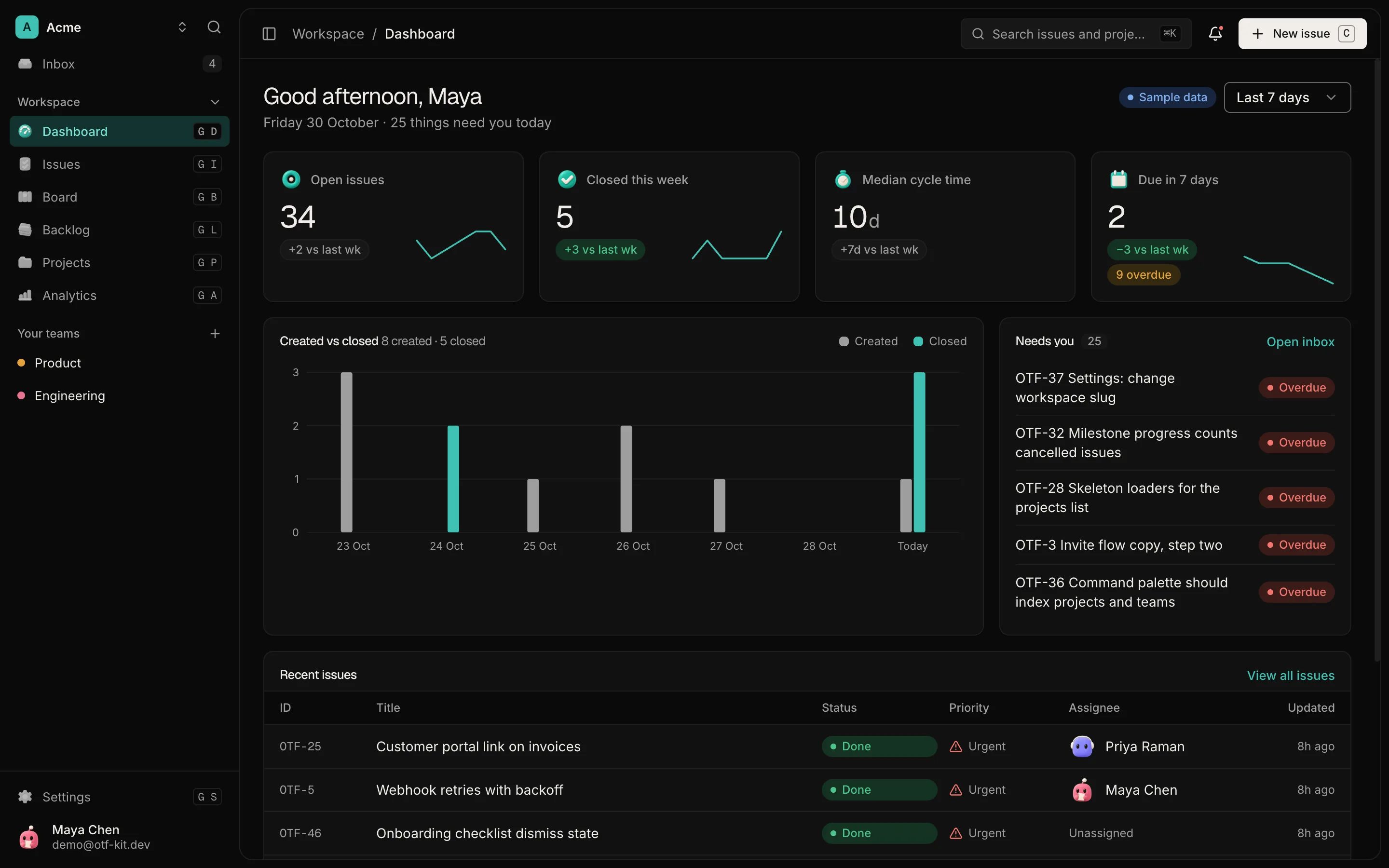
- Operator screens for dashboard, analytics, issues, projects, teams, inbox, and settings
- Auth session tables plus workspace, teams, projects, and issues in schema you migrate
- The kit includes no billing; its customization guide shows how to add Checkout and a webhook.
- Agent handoff files (
CLAUDE.md,.cursorrules, and prompts underai/prompts/) for extending the repo; product billing remains an implementation you add yourself
Checkout gets someone onto a plan. The Customer Portal is the ongoing surface: upgrades, downgrades, payment methods, invoices, and cancellation rules you configure once in Stripe. Stripe documents that flow as configure the portal, create a portal session, redirect to the session URL, then listen for subscription and payment-method webhooks (Integrate the customer portal).
Do not treat "Settings" chrome in the kit as a finished billing console. Settings can host the Manage billing button. Stripe hosts the portal.

Configure the portal before you write a route
Stripe's integration guide is explicit: register products and prices, then use the Dashboard (or the Billing Portal Configuration API) to decide what customers may do — invoice history, payment-method updates, subscription cancel, and whether plan changes are allowed. If customers can upgrade or downgrade, you must also set a product catalog the portal can present (Integrate the customer portal).
Practical order on an owned SaaS repo:
- Add and test Checkout plus the purchase webhook using the kit's Payments guide. Idempotency matters on Stripe retries — see Stripe sent the same purchase webhook 4 times.
- In the Stripe Dashboard Customer portal settings, enable only the actions you are ready to honor in your app (cancel at period end vs immediate, plan changes, payment methods).
- Preview the portal against a test customer before any production toggle. Stripe documents a read-only Preview and a per-customer "Open customer portal" action in sandboxes.
- Mirror live-mode configuration separately. Stripe keeps distinct portal configurations for live mode and each sandbox; changing one does not update the other.
If you skip the catalog while enabling plan changes, the portal cannot show honest upgrade targets. That is a configuration bug, not an app bug.

12 production screens. Login and database wired.
The SaaS Dashboard Kit includes login, a database, and a working dashboard. Live demo at saas.otf-kit.dev.
Create a portal session from a privileged route
Stripe's entry point is a Billing Portal Session. Your authenticated "Manage billing" control should POST to your own server. The server looks up the Stripe Customer id for the signed-in workspace member, creates a session with that customer and a return_url back into your app, then redirects to the short-lived url on the session object (Integrate the customer portal; Create a portal session).
Illustrative shape only — implement a server-side portal route in your app after adding Checkout; the kit does not ship a Stripe route:
// illustrative — privileged route after session auth
import Stripe from "stripe";

const stripe = new Stripe(process.env.STRIPE_SECRET_KEY!);

export async function createBillingPortalSession(opts: {
  stripeCustomerId: string;
  returnUrl: string; // absolute URL into your signed-in settings page
}) {
  const session = await stripe.billingPortal.sessions.create({
    customer: opts.stripeCustomerId,
    return_url: opts.returnUrl,
  });
  return session.url; // redirect the browser here — never invent a portal URL
}
Hard rules that survive agent edits:
- Authenticate before creating a session. A portal session is a capability grant for that Stripe Customer.
- Persist the Stripe Customer id at Checkout time (or when the subscription is first created) on a server-owned table. Do not ask the browser to supply a customer id.
- Redirect only to
session.urlreturned by Stripe. Do not hardcode a portal hostname or paste a fake Checkout pay link into samples. - Keep secret keys and webhook signing secrets on the server. The kit's customization guide shows how to add a Checkout route and webhook. Keep portal session creation server-side too.
Optional: pass a specific configuration id when different customer cohorts need different portal features. Stripe documents that override on session create; otherwise the default Dashboard configuration applies.

Webhooks keep entitlement aligned with the portal
The portal UI is not your source of truth. Stripe is. When a customer upgrades, downgrades, cancels, or changes a default payment method, your app must react through webhooks. Stripe's portal guide lists the events you should care about, including:
customer.subscription.updated— plan or quantity changes; grant or adjust product access from the price on the subscription itemscustomer.subscription.deleted— revoke access when the subscription ends- Cancel-at-period-end flows — listen for updates where cancellation is scheduled, then revoke only when the period actually ends (or when deleted fires), depending on how you configured the portal
payment_method.attached/payment_method.detachedandcustomer.updated— keep local billing profile fields in sync; do not treat billing email as a login credential (Integrate the customer portal)
After you add Checkout and its purchase webhook to the kit, process portal events in your own handler:
- Verify the Stripe signature on every event.
- Deduplicate by event id so retries do not double-apply entitlement (same lesson as the purchase idempotency post).
- Update workspace plan / seat / status columns from the subscription object — not from what the success page guessed.
- Keep agent prompts pointed at "extend the webhook handler," not "add a second billing table in chat."
If an agent proposes a client-only "cancel" button that flips a local canceled flag without Stripe, reject it. Local flags drift. Portal + webhooks do not.
Where to add a Manage billing button
Public screen inventory for the SaaS kit includes Settings surfaces for profile, workspace, notifications, and appearance. That is the natural home for a Manage billing control that hits your portal-session route. The operator stays inside your product until redirect; Stripe renders plan change, card update, invoice history, and cancel UX; return_url brings them back to the same settings area.
Buyer checklist after clone:
- After implementing Checkout and the webhook, configure the Stripe secret key and webhook signing secret in your environment. The kit does not ship a billing configuration.
- After implementing Checkout, verify that your flow creates a Customer and Subscription in Stripe test mode.
- Add a server-side field or table for
stripe_customer_id(and a subscription id if needed); the kit does not include a billing row. - Add the authenticated portal-session route and a single Settings CTA
- Enable portal features in test mode, click through upgrade/cancel, watch webhook rows update entitlement
- Only then copy configuration to live mode and point production webhooks at the same handler shape
Agent session tip: load CLAUDE.md / .cursorrules and ask: "After Checkout and its webhook are implemented, add a Manage billing button that creates a Billing Portal Session for the workspace's Stripe Customer and redirects to session.url." Configure the Stripe product catalog before implementing plan choices.
When to buy the kit versus staying on Checkout-only glue
Stay on a thin Checkout script when you have no recurring customers yet and cancellation is still a reply to an email. Consider the SaaS kit as a starting repo if you are prepared to add Checkout and a Customer Portal, and most of these are true:
- Operators already live in dashboard / issues / projects / teams screens you intend to keep
- Subscriptions are the commercial model, not one-off payments
- You want plan changes and card updates without building a billing UI
- Webhook-confirmed entitlement must match what Stripe shows for the Customer
- Maintenance happens in Cursor or Claude Code on a repository you own, with agent memory next to the code
Sandboxes remain useful for spikes. After implementation, the durable seam is: Checkout for acquisition, Customer Portal for self-serve lifecycle, webhooks for access — all on privileged routes in a repo you can migrate.
Product page: SaaS Dashboard kit. Pricing: https://otf-kit.dev/pricing. For the broader greenfield framing, read How to build a SaaS app with AI. For webhook retry discipline, keep Stripe webhook idempotency open beside this page.
Sources
-
SaaS Dashboard kit Payments customization guide (read 9 October 2026).

Ship the product, not the setup.
- 12 production screens — auth, team, analytics, and settings
- Login and a real database are wired in
- AI configs pre-tuned so your agent extends instead of regenerates
Ship your first screen tonight — free starter in your inbox
The quickstart, the SDK repo and the live kit demos, on this screen and in your inbox.
No spam. Unsubscribe any time.